


Learning UML (Unified Modeling Language) can feel overwhelming at first—especially when you’re trying to grasp class relationships, sequence flows, or state transitions without a clear starting point. But with the right tools, the process becomes intuitive, interactive, and even enjoyable. One such tool gaining traction among developers, students, and software designers is Visual Paradigm’s AI Chatbot, a conversational assistant that turns natural language into professional UML diagrams.
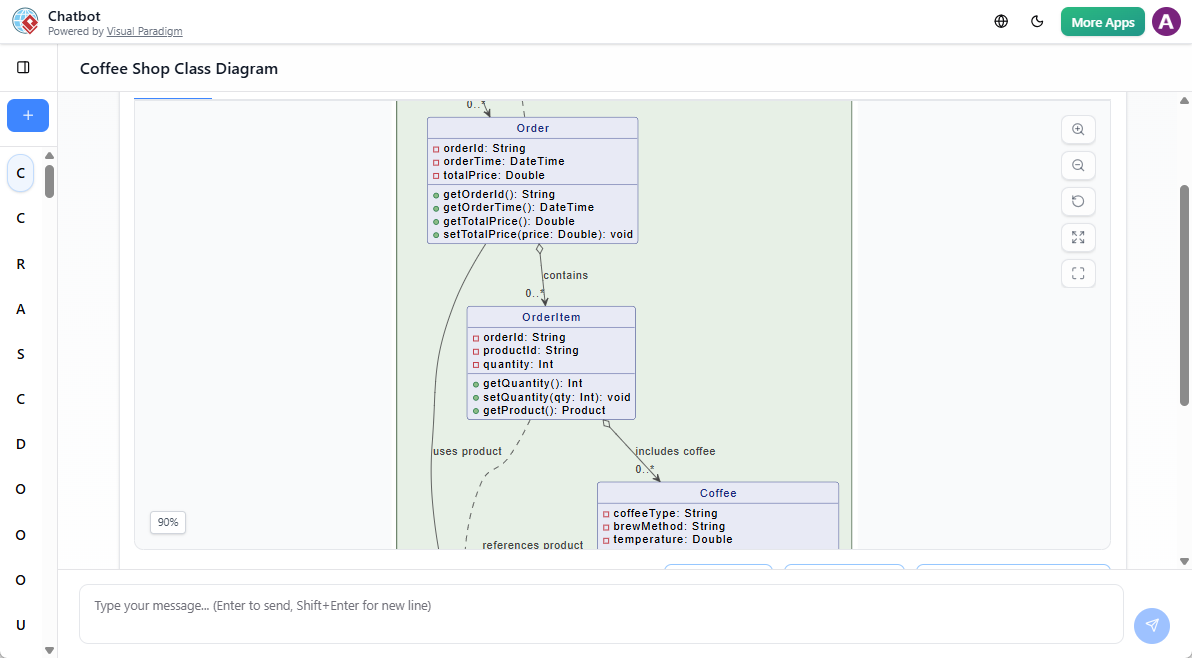
Whether you’re a beginner trying to understand how to model a simple system or a developer refining architecture, this guide walks you through using the AI Chatbot effectively to learn and apply UML concepts step by step.
🧠 Why Use AI to Learn UML?
Traditional UML learning often involves studying syntax, notation rules, and textbook examples—sometimes without immediate feedback. Visual Paradigm’s AI Chatbot changes that by offering a hands-on, real-time modeling experience. Instead of memorizing symbols, you describe your system in plain English, and the AI generates a visual representation instantly.
This approach supports active learning, where you experiment, observe, and adjust—just like in real-world design. It’s especially helpful for visual learners who benefit from seeing relationships between components.
✅ Pro tip: Use this tool not just to generate diagrams, but to test your understanding. Ask the AI to model a system you’ve already thought about, then compare the result to your mental model.
🔧 Key Features That Support Learning
📌 Instant Diagram Generation
The AI can produce several UML diagram types from a single prompt:
- Class Diagrams
- Use Case Diagrams
- Sequence Diagrams
- State Machine Diagrams
- Package Diagrams
For example, typing “Model a university system with students, courses, and instructors” generates a Class Diagram with relevant classes, attributes, and relationships—complete with proper notation.
💬 Conversational Refinement
You don’t need to get it perfect on the first try. The chatbot supports iterative editing:
- “Add a ‘Grade’ class that connects to Student and Course.”
- “Rename the ‘Employee’ class to ‘Faculty’.”
- “Make the ‘enroll’ relationship optional.”
Each command updates the diagram in real time, helping you understand how changes affect the model.
📊 Design Feedback & Best Practices
After generating a diagram, use the Analysis Report or Validation Checklist to get insights like:
- Missing associations or multiplicities
- Redundant or unclear class names
- Suggested improvements based on UML standards
This feedback loop reinforces good modeling habits and helps you avoid common pitfalls.
🔄 Seamless Integration
Once satisfied, you can:
- Import the diagram into Visual Paradigm Desktop or Online for deeper editing
- Export as SVG, PNG, or PDF for documentation or presentations
- Use the model as a foundation for code generation (e.g., Java, C#, Python)
This workflow bridges learning with practical application.
🛠️ Step-by-Step: How to Use the AI Chatbot
1. Launch the Chatbot
You can access it via:
- Web: Visit chat.visual-paradigm.com directly in your browser.
- Desktop App: Open Visual Paradigm, go to Tools > Apps > AI Assisted UML, and start modeling.
No installation or setup required—just start typing.
2. Write a Clear Prompt
Be specific about your system. The more detail you provide, the better the output.
Example Prompts:
- “Create a Class Diagram for a library management system with Book, Member, and Loan classes.”
- “Generate a Sequence Diagram showing how a user logs in to an online banking app.”
- “Model a Use Case Diagram for an e-commerce checkout process, including Customer, Payment, and Order classes.”
💡 Hint: Include key entities, their relationships, and any constraints (e.g., “a member can borrow up to 5 books”).
3. Refine with Natural Language Commands
Once the diagram appears, interact with it like a collaborator:
- “Add a ‘Return’ operation to the Loan class.”
- “Change the multiplicity between Book and Loan to 1…“
- “Show the dependency from Payment to SecurityCheck.”
Each interaction teaches you how UML notation reflects real-world logic.
4. Review & Validate
Click “Analysis Report” to see:
- Structural correctness
- Naming consistency
- Potential design issues
Use these insights to deepen your understanding of UML principles.
5. Export or Continue
- Export as image or PDF for notes or reports.
- Import into your full IDE environment to continue working or generate code.
This makes the chatbot ideal for both learning and project work.
🎯 Sample Practice: Build a Simple E-Commerce System
Let’s walk through a real example to demonstrate the learning process.
Prompt:
“Create a Class Diagram for an e-commerce website with Product, Customer, Order, and Payment classes. A Customer can place multiple Orders, and each Order contains multiple Products. Payments are linked to Orders.”
Result:
The AI generates a diagram with:
Customer(1) — (0…*)OrderOrder(1) — (1…*)ProductOrder(1) — (1)Payment
Refine:
“Add a ‘discount’ attribute to the Order class, with a default value of 0.0.”
Now you’ve added a property and seen how attributes are represented in UML.
Validate:
Run the Validation Checklist. The AI may suggest:
- “Consider adding a ‘status’ field to Order to track fulfillment.”
- “Ensure multiplicity on Product is correct—should it be 0…*?”
These suggestions reinforce best practices and help you think critically about design.
📚 Learning UML the Smart Way
Using the AI Chatbot isn’t about bypassing learning—it’s about accelerating it. By focusing on:
- Describing systems in natural language
- Observing how models evolve
- Receiving immediate feedback
You develop a deeper, more intuitive grasp of UML than with static tutorials alone.
It’s ideal for:
- Students learning software design
- Junior developers practicing system modeling
- Teams prototyping ideas before coding
- Educators demonstrating concepts in class
✅ Final Tips for Success
- Start simple: Model everyday systems (e.g., a coffee shop, a to-do app).
- Experiment: Try the same system with different constraints.
- Compare: Generate the same diagram multiple ways and see how the AI interprets your wording.
- Use the export feature to keep a record of your learning journey.
The AI Chatbot isn’t a replacement for understanding UML—it’s a co-pilot that helps you think like a designer.
📌 Ready to Try?
Head to chat.visual-paradigm.com and type your first prompt. Whether you’re modeling a fitness tracker, a hospital system, or a social media feed, the AI will help you visualize it in UML—fast, clearly, and correctly.
Start small. Learn by doing. And watch your modeling skills grow—one conversation at a time.
📝 Note: Visual Paradigm’s AI Chatbot is part of a broader ecosystem that supports UML modeling, code generation, and collaboration. It’s designed to scale with your needs—from learning to professional development.