
Mastering PlantUML Layouts and Annotations in VPasCode
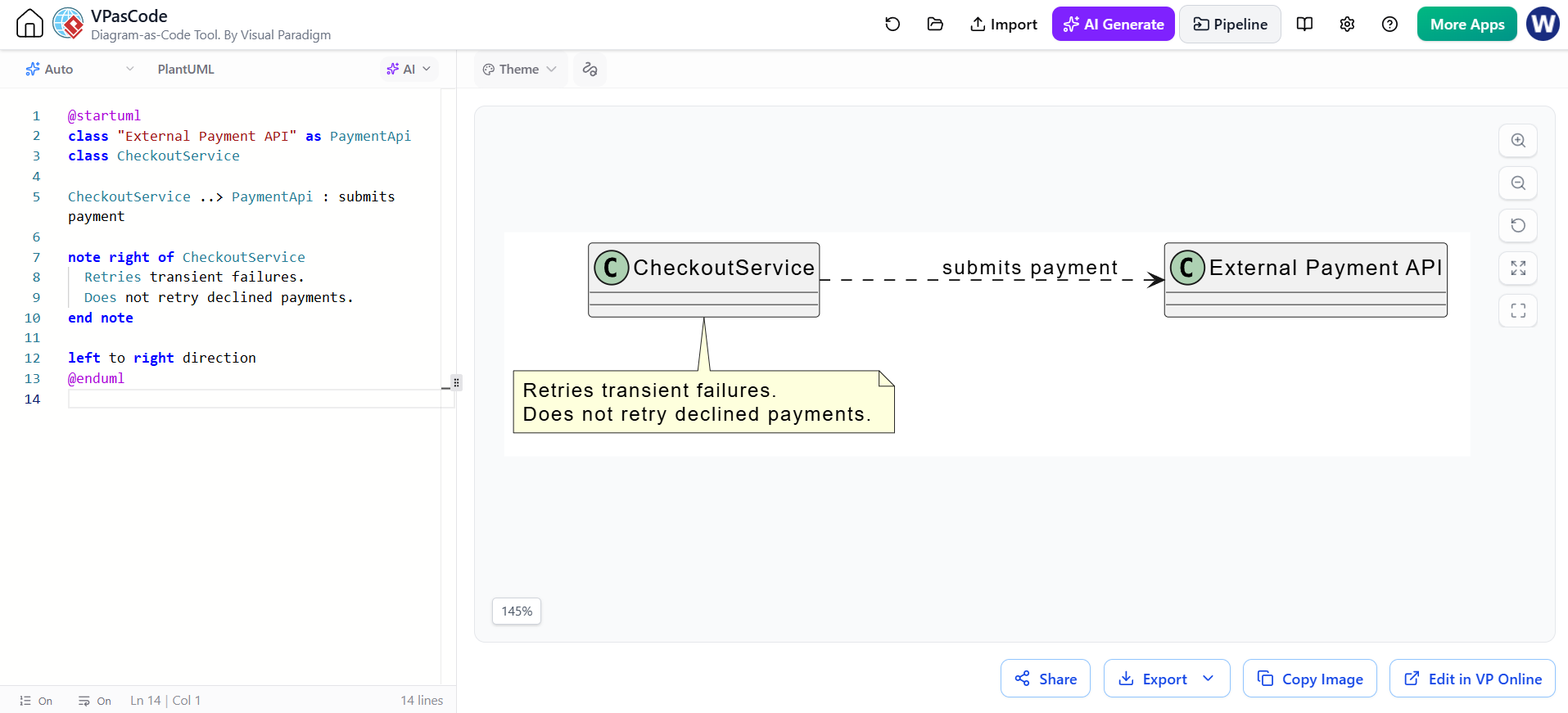
Welcome to this comprehensive tutorial on creating robust system architecture diagrams using VPasCode. When designing complex software systems, a static image often fails to capture the nuances of how components interact. Diagrams-as-Code solutions, specifically utilizing PlantUML within the Visual Paradigm environment, offer a dynamic alternative. This guide will walk you through the specific syntax rules for controlling layout direction, utilizing aliases for cleaner class names, and adding essential contextual notes to clarify design decisions.
1. Controlling Global Layout with Direction
In standard PlantUML, diagrams are often rendered from top-to-bottom by default. However, system flows—such as payment processing pipelines or data pipelines—are frequently better understood when read from left to right. You can override the global rendering engine’s default behavior using the direction directive.
To force a left-to-right flow, place the following command at the beginning of your diagram definition:
@startuml
left to right direction

' Your diagram components go here

@enduml
This single line ensures that all subsequent relationships and class placements follow a horizontal flow, which is crucial for aligning with standard system architecture patterns where data flows from a source (left) to an external service (right).
2. Managing Class Names and Aliases
One of the most common challenges in system modeling is dealing with long, technical class names that contain spaces or punctuation. If you define a class directly with spaces (e.g., class "External Payment API"), the diagram can become cluttered, and the code becomes harder to maintain.
The solution is to use the as keyword to create a short-hand alias. This allows you to reference the class using a clean identifier while displaying the full, descriptive name in the box.
class "External Payment API" as PaymentApiIn the code above:
- “External Payment API”: This is the visual label that appears in the diagram box.
- as PaymentApi: This is the internal variable name. You use this alias in relationship definitions and notes, keeping your code logic clean and readable.
3. Adding Contextual Notes
Diagrams should explain how things connect, but they shouldn’t necessarily explain why. That is the role of notes. Notes are invaluable for documenting business logic, constraints, or edge cases without cluttering the class names or relationship lines.
Using the note keyword, you can attach a text block to any specific class. You can position these notes to the left, right, above, or below the target element.
note right of CheckoutService
Retries transient failures.
Does not retry declined payments.
end note
This specific snippet attaches a note to the CheckoutService class. By specifying right of, you ensure the note does not overlap with the class box itself, maintaining a clean visual hierarchy.
4. Defining Relationships and Logic
Finally, we connect our components using relationship lines. In the provided example, a dashed line is used to indicate a dependency or a specific type of interaction, labeled with the action submits payment.
CheckoutService ..> PaymentApi : submits paymentThe double-dot ..> syntax typically indicates a dependency or a weak relationship, distinct from a solid line which might imply a strong aggregation or composition. The text after the colon defines the specific nature of that interaction.
Complete Code Example
Here is the complete snippet combining all these concepts into a single, cohesive diagram definition:
@startuml
left to right direction

class "External Payment API" as PaymentApi
class CheckoutService

CheckoutService ..> PaymentApi : submits payment

note right of CheckoutService
Retries transient failures.
Does not retry declined payments.
end note
@enduml