
Mastering UML Sequence Diagrams in Visual Paradigm: A Step-by-Step Guide
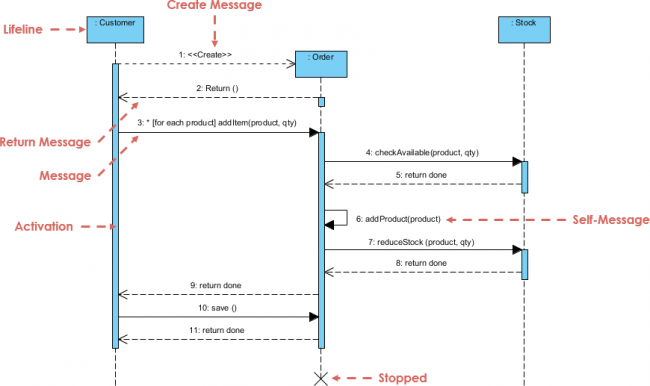
Sequence diagrams are the backbone of dynamic system modeling in software engineering. They provide a time-ordered view of how objects interact to perform a specific function. Whether you are analyzing an online order process or a complex banking transaction, understanding how to construct these diagrams in Visual Paradigm is essential for clear technical communication.
In this tutorial, we will walk through the anatomy of a sequence diagram, focusing on the critical elements that define system behavior: lifelines, activation, and message flow types. We will dissect a standard “Order Processing” scenario to demonstrate how to visualize data flow from a user’s perspective down to backend logic.
Understanding the Core Components
Before diving into the logic, let’s break down the visual vocabulary used in Visual Paradigm’s sequence diagrams.
- Lifelines: These are the vertical dashed lines extending from the top of the diagram. They represent the existence of an object (like a
Customer,Order, orStock) over a period of time. In Visual Paradigm, you can easily create these by dragging a class onto the diagram and selecting “Create Sequence Diagram.” - Activation Bars: The thin blue rectangles on the lifelines indicate the period during which an object is performing an action or waiting for a response. If you see a thick bar, it means that object is currently “busy.”
- Messages: Arrows connecting lifelines represent interactions. Visual Paradigm distinguishes between different types of messages using distinct arrowheads.
Decoding the Interaction Flow
Let’s trace the logic of the “Create Message” scenario shown in the diagram. This flow illustrates a customer placing an order that checks stock availability and saves the transaction.
1. Object Creation and Initialization
The sequence begins with a Self-Message or a return message from the Order object creation. In Visual Paradigm, this is often represented by a dashed line returning to the sender. The diagram shows the creation of an Order instance initiated by the Customer.
2. Iterative Logic (Loops)
One of the most powerful features in Visual Paradigm is modeling loops. Notice step 3 in the diagram: 3: [for each product] addItem(product, qty).
The asterisk denotes iteration. This tells us that the Customer is not just adding one item, but looping through a collection of products. When modeling this in Visual Paradigm, you can use the “Loop” fragment to group these messages visually, but often, simply annotating the message with a guard condition like [for each product] is sufficient for clear logic.
3. Synchronous vs. Asynchronous Messages
Visual Paradigm offers two primary ways to send messages:
- Synchronous (Solid Arrow): Used in steps 4, 6, and 7. The sender waits for a response. For example, when
OrdersendscheckAvailabletoStock, it pauses execution untilStockreplies. - Asynchronous (Open Arrow): Used for events that don’t require an immediate response, though in this specific diagram, most interactions are synchronous to ensure data integrity.
Advanced Modeling: Self-Messages and Return Flows
A critical part of this diagram is the handling of internal logic. Step 6, addProduct(product), is a Self-Message. This occurs when an object modifies its own state or calls its own internal methods.
In Visual Paradigm, you can draw a curved arrow from the top of the activation bar back to itself. This visual cue is vital for developers because it indicates that the Order object is performing a calculation or data preparation before the final persistence step.
Tracing the Return Messages
Every action in a sequence diagram typically has a corresponding return, represented by a dashed arrow. Notice steps 5, 8, 9, and 11. These “return done” messages signify that the previous task was successful and control is being passed back up the chain. If you are using Visual Paradigm’s code generation features, these return messages often correlate with the return values in your Java or C# methods.
Finally, observe the Stopped state at the bottom of the Order lifeline. The ‘X’ mark indicates the termination of the object. In the context of the diagram, once the order is saved, the Order object’s immediate lifecycle in this specific interaction ends.
Conclusion
By mastering the distinction between synchronous calls, self-messages, and iterative logic, you can create sequence diagrams that are not just pictures, but executable specifications of your system’s behavior. Visual Paradigm provides the robust tooling required to translate these abstract concepts into clear, professional documentation.