
Mastering the VP Unified Platform: Architecting the VP AI Ecosystem
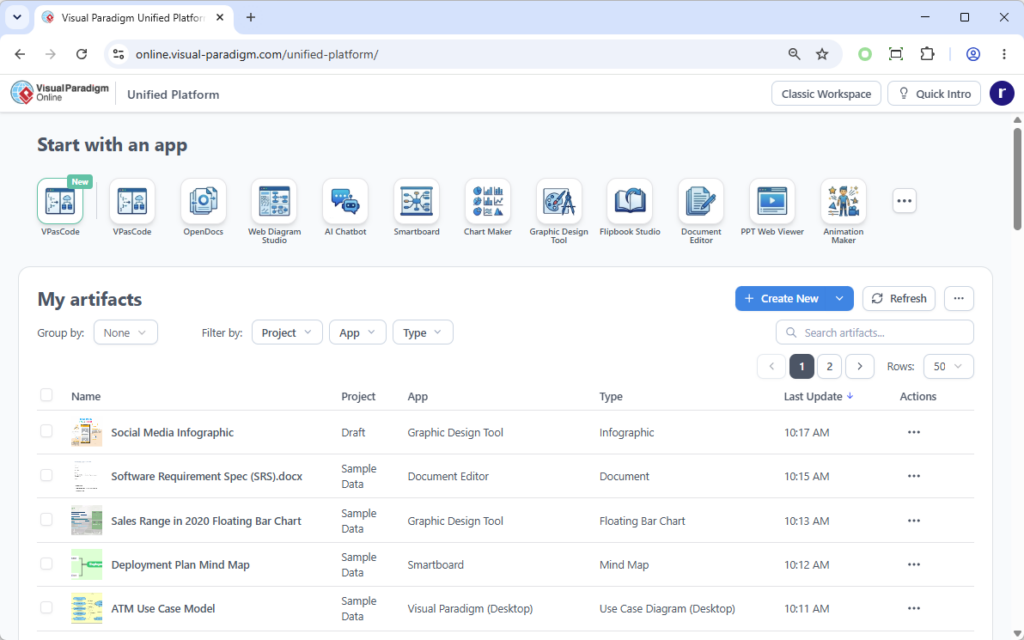
The modern software engineering landscape is fragmented. Teams often juggle disparate tools for modeling, documentation, web design, and data management. This fragmentation creates “data silos” where a diagram created in a desktop application is disconnected from the documentation written in a cloud editor, or where the source code for a web application is managed separately from its visual architecture.
The Visual Paradigm Unified Platform represents a paradigm shift from simple UI updates to a fundamental architectural change. It functions as a true centralized hub, integrating an ecosystem of over 100 applications into a single, cohesive environment. This tutorial explores the technical architecture behind this platform, focusing on the “Desktop & Web Synergy” and the “Centralized App & Data Management” capabilities that bridge the gap between local development and cloud collaboration.
The Architecture of the Unified Platform
At its core, the Unified Platform is designed to solve the synchronization problem inherent in multi-tool workflows. Instead of treating tools as isolated islands, the platform treats them as modules within a larger, unified ecosystem. This is achieved through two primary architectural pillars:
- Centralized App & Data Management: A unified dashboard that acts as a single point of entry for all tools, providing a “drive-like” environment where artifacts are not just stored but are contextually linked.
- Desktop & Web Synergy: A seamless integration layer that allows desktop applications (VP Desktop) to interact with cloud-based data and web applications without complex file transfer protocols or manual synchronization.
1. Centralized App & Data Management
In traditional workflows, a user might launch “Document Editor” to write a requirement, then switch to “VPasCode” to generate a diagram, and finally open “Smartboard” to visualize the result. Data is often duplicated or siloed. The Unified Platform restructures this by implementing a centralized artifact registry.
When you view the “My artifacts” section of the platform, you are interacting with a unified database schema. This allows the system to aggregate data from various sources:
- Unified Namespace: Whether a file is a Software Requirement Spec created in the Document Editor or a Deployment Plan Mind Map created in Smartboard, they share a common metadata structure. This allows for filtering and grouping by Project, App, or Type.
- Instant Launch Capability: The platform does not merely link to files; it manages the state of the application. Clicking a tool icon (like VPasCode or Web Diagram Studio) launches the specific environment required for that artifact, preserving the context of the user’s current project.
2. Desktop & Web Synergy: The Embedded Browser Model
Perhaps the most technically significant feature of the Unified Platform is its handling of the boundary between the Desktop and Web environments. Historically, desktop applications have been “local-first,” meaning data resides on the user’s hard drive. Cloud applications are “remote-first.”
The Unified Platform bridges this gap using an embedded browser model. For Visual Paradigm Desktop users, the platform is not accessed by navigating to a website in a separate window; rather, it is rendered inside the desktop application.
This architecture allows for:
- Flawless Data Coexistence: Your desktop-designed diagrams (stored locally or in a local project) can coexist with cloud app data. The system abstracts the storage location, presenting a unified view of the project assets.
- Seamless Collaboration: Teams can collaborate on cloud-based artifacts while maintaining the power of desktop tools for heavy lifting, such as complex modeling or code generation.
Practical Application: Managing Artifacts
To effectively utilize the Unified Platform, users must understand how artifacts are categorized and managed within the “My artifacts” grid. This grid serves as the primary interface for data governance.
Filtering and Grouping Logic
The platform provides robust filtering capabilities to manage large volumes of data. The “Group by” and “Filter by” dropdowns allow users to organize the view based on specific attributes:
- Filter by Project: Isolates artifacts belonging to a specific project context, reducing cognitive load.
- Filter by App: Useful for auditing which tools are being used within a project or for finding specific file types.
- Filter by Type: Allows for quick navigation to specific deliverables, such as “Use Case Diagrams” or “Infographics.”
The “Create New” Workflow
The workflow for creating new content is streamlined to reduce friction. The + Create New button serves as the primary entry point for generating new artifacts. This action triggers a context-aware wizard that ensures the new artifact is correctly linked to the current project and stored in the appropriate cloud or local repository.
Technical Best Practices for the Unified Ecosystem
When working within this integrated environment, adhering to specific best practices ensures data integrity and performance.
- Leverage Cloud-Local Synchronization: Use the Unified Platform to manage the “source of truth.” If you are working on a team, keep the project data in the cloud (Unified Platform) rather than purely on the desktop, to ensure all team members see the latest updates.
- Use the Unified Search: Instead of navigating through folders, use the search bar to locate artifacts by name or content. This is particularly effective when dealing with mixed file types (e.g., searching for “ATM” and finding both the Use Case Diagram and the Document Editor spec).
- Understand App Context: When launching a tool from the dashboard, understand that the platform injects the necessary project context. You do not need to manually open the project file within the new tool; the platform handles the linkage.
Conclusion
The Unified Platform is more than a dashboard; it is a technical solution to the problem of software fragmentation. By integrating desktop power with web accessibility and centralizing data management, Visual Paradigm has created a workspace where the distinction between “local” and “cloud” becomes irrelevant, allowing developers and architects to focus on the system itself rather than the tools required to manage it.