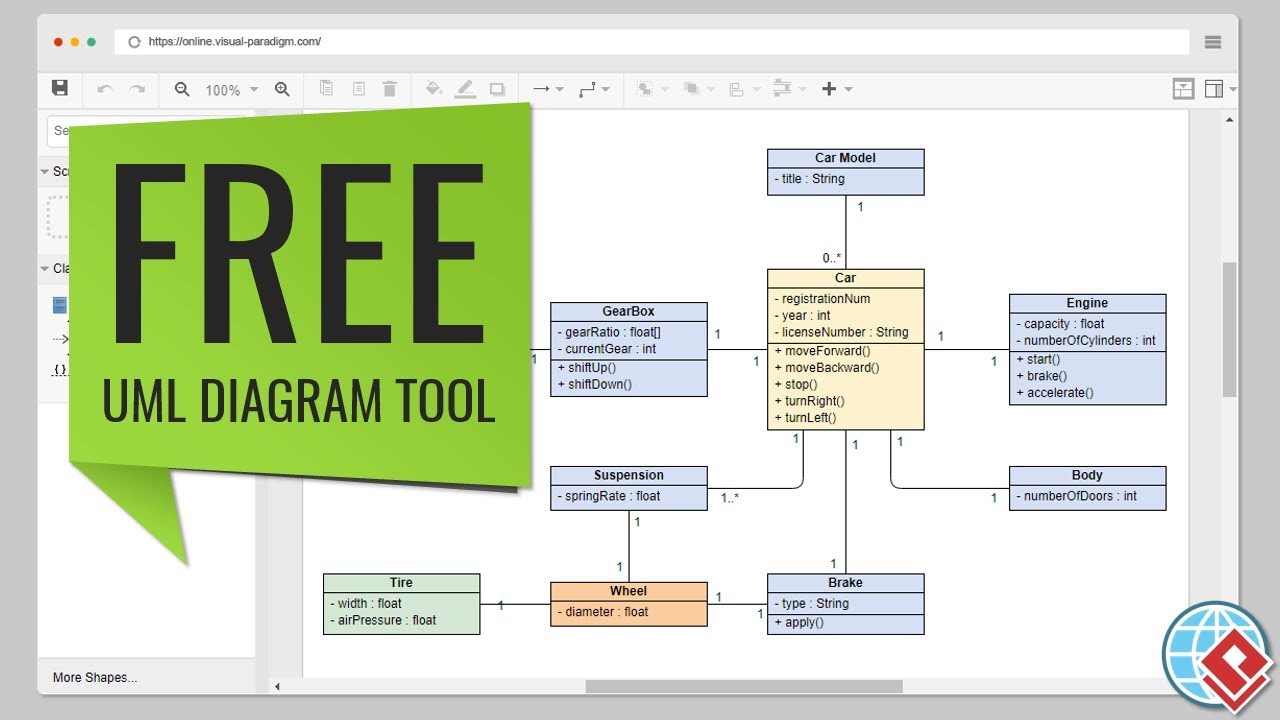
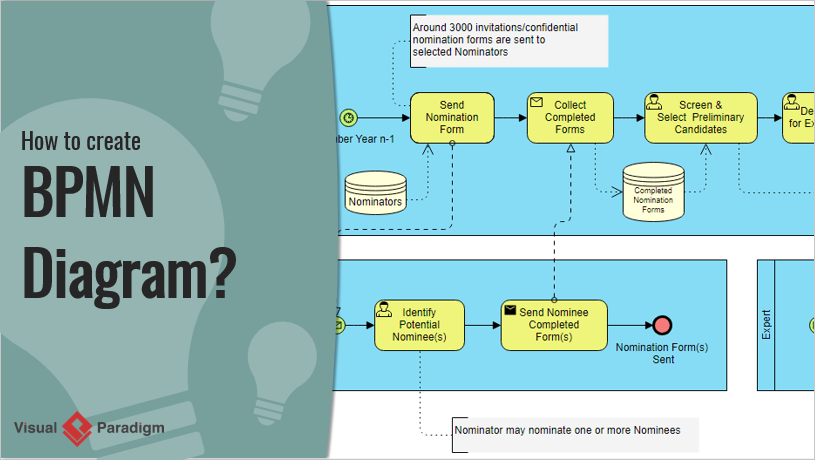
A comprehensive guide to Entity-Relationship Diagram (ERD) modeling

ERDs remain one of the most important tools for designing relational databases, communicating data requirements, and avoiding costly redesigns later.

1. What is an ERD and Why Do We Use It?

An Entity-Relationship Diagram (ERD) is a visual model that shows:

  • The things we want to store (entities)
  • The properties of those things (attributes)
  • How those things are connected (relationships)
  • How many of each thing can be connected (cardinality / multiplicity)

Main purposes in 2025–2026:

  • Communicate structure between developers, analysts, product managers, and domain experts
  • Serve as single source of truth before writing DDL (CREATE TABLE …)
  • Catch logical mistakes early (redundancy, missing constraints, wrong cardinalities)
  • Support microservices / domain-driven design boundary identification
  • Generate documentation automatically in many modern tools

2. Core Notations Used Today

Three main families are still actively used:

Notation Popularity (2025) Readability Best For Symbols for cardinality
Crow’s Foot Highest Very high Most teams, tools (Lucidchart, dbdiagram, Draw.io, QuickDBD, etc.) Crow’s feet, bars, circles, dashes
Chen Medium Medium Academia, some conceptual modeling Numbers (1, N), diamonds heavy
IDEF1X Low Medium Some government / legacy systems Specific box-in-box notation

Crow’s Foot is the de-facto industrial standard in 2025–2026 → we will use it in this guide.

3. Basic Building Blocks (Crow’s Foot)

Concept Symbol Description Example
Strong Entity Rectangle Exists independently, has its own primary key Customer, Order, Product
Weak Entity Double rectangle Existence depends on owner entity; partial key + owner’s key = full key OrderLine (depends on Order)
Attribute Oval (connected to entity) Property of an entity name, price, email
Primary Key Underlined attribute Uniquely identifies entity instance customer_id, isbn
Multivalued Attr Double oval Can have multiple values (usually becomes separate table) phone_numbers, tags
Derived Attr Dashed oval Can be calculated from other attributes age (from birth_date)
Composite Attr Oval containing other ovals Attribute made of several sub-attributes full_address → street, city, zip

4. Relationships & Cardinality (The Heart of ERD)

Relationship = diamond (sometimes just a line in modern minimalist style)

Cardinality answers two questions for each side of the relationship:

  • Minimum number of related instances? (0 or 1)
  • Maximum number of related instances? (1 or many = N)
Symbol (Crow’s Foot) Minimum Maximum Meaning (from this side) Common name Example sentence
Circle (○) 0 Optional Zero A customer may have placed zero orders
Short bar ( ) 1 Mandatory One (exactly)
Crow’s foot (> ) 0 N Zero or many Optional many A customer can place many orders
Bar + crow’s foot (> ) 1 N One or many Mandatory many
Double bar ( ) 1 1 Exactly one

Common patterns (written left → right):

  • 1:1 || — || Person ↔ Passport (current)
  • 1:0..1 || — ○| Department ↔ Manager (some depts have no manager)
  • 1:N || — >| Author → Book
  • 1:0..N || — ○> Customer → Order
  • M:N >| — >| Student ↔ Course (many-to-many)

5. Participation Constraints

  • Total participation = double line from entity to relationship (every instance must participate)
  • Partial participation = single line (some instances may not participate)

Examples:

  • Every Order must have at least one OrderLine → total participation (double line) + 1..N
  • Not every Customer has placed an Order → partial + 0..N

6. Weak Entities & Identifying Relationships

Weak entity:

  • Cannot exist without its owner (strong entity)
  • Its primary key = owner’s PK + partial key (discriminator)

Symbol:

  • Double rectangle
  • Identifying relationship = double diamond or bold line
  • Usually 1:N identifying relationship (owner → many weak entities)

Classic example:

Order contains OrderLine
(double rect + bold line)
PK: order_id PK: (order_id, line_number)

7. Step-by-Step ERD Modeling Process (Practical 2025–2026 Workflow)

  1. Understand the domain deeply Talk to stakeholders → collect nouns & verbs

  2. List candidate entities (nouns) → Filter real-world objects that need to be stored independently

  3. List attributes for each entity → Mark primary keys (underlined) → Identify candidate keys / natural keys → Spot multivalued, composite, derived attributes

  4. Find relationships (verbs) → Ask: “Which entities are directly associated?” → Avoid transitive relationships (they usually hide missing entities)

  5. Determine cardinality & participation for each direction → Write 4–6 sentences using the template: “Each A can/must be associated with zero/one/many B.” “Each B can/must be associated with zero/one/many A.”

  6. Handle M:N relationships Almost always resolve them into junction table (weak or strong entity) Add attributes if the relationship itself has properties (e.g. enrollment_date, grade)

  7. Identify weak entities Ask: “Can this entity exist without the other?”

  8. Add supertype/subtype (if needed — inheritance) Use circle with d (disjoint) / o (overlapping)

  9. Review for common smells

    • Fan trap / chasm trap
    • Too many M:N without attributes → missing entity?
    • Redundant relationships
    • Missing mandatory participation
    • Entities with only foreign keys → probably weak entity
  10. Validate with stakeholders using concrete examples

8. Modern Best Practices & Tips (2025–2026)

  • Prefer minimalist style (no diamonds — just labeled lines)
  • Use verb phrases on relationship lines (places, contains, taught_by)
  • Color-code domains / bounded contexts in large models
  • Keep logical ERD separate from physical (data types, indexes come later)
  • Version control the .drawio / .dbml / .erd file
  • Use tools that can generate SQL / Prisma / TypeORM schema (dbdiagram.io, erdgo, QuickDBD, Diagrams.net + plugins)
  • For very large systems → modular ERDs per bounded context

Quick Reference – Most Common Patterns

  • Customer 1 —— 0..* Order
  • Order 1 —— 1..* OrderLine
  • Product * —— * Category → resolve to junction + attributes
  • Employee 1 —— 0..1 Department (manager)
  • Department 1 —— 0..* Employee (members)
  • Person 1 —— 0..1 Car (current_car)

Recommended AI ERD Tool

Visual Paradigm offers a comprehensive ecosystem for ERD visual modeling, combining desktop-grade engineering power with cloud-based agility, AI acceleration, and team collaboration features. This makes it suitable for individual modelers, agile teams, enterprise architects, and database professionals working on everything from quick prototypes to complex legacy system re-engineering.

The ecosystem primarily consists of two main platforms that complement each other:

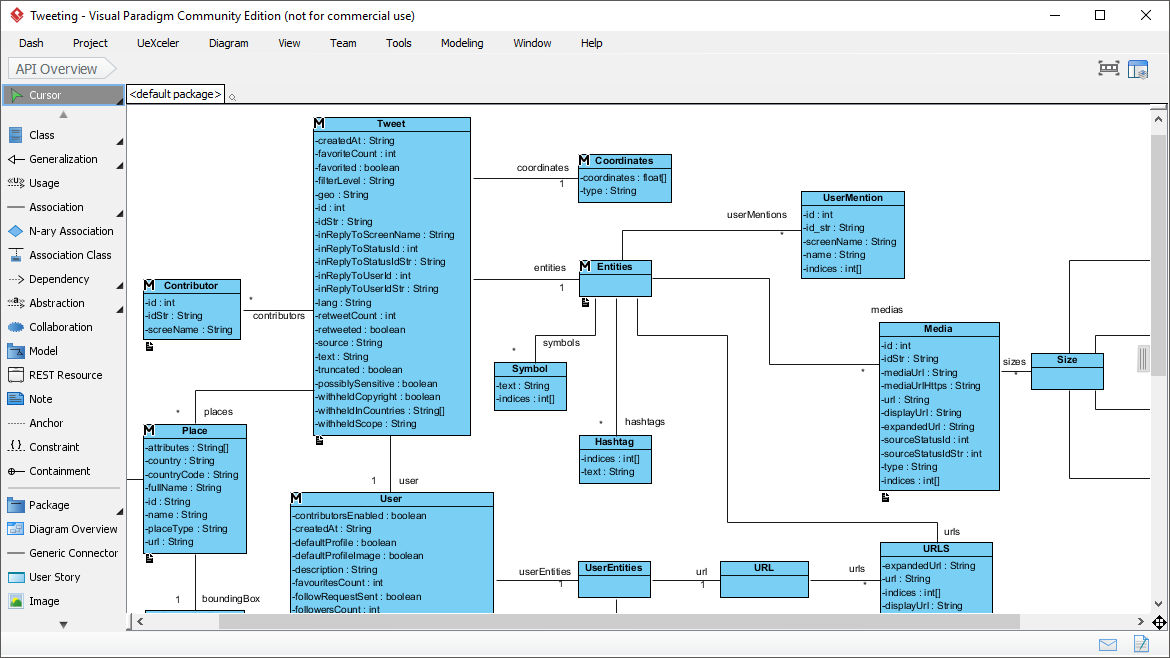
  • Visual Paradigm Desktop (downloadable application for Windows, macOS, Linux) — focused on deep, professional database engineering.
  • Visual Paradigm Online (browser-based, no installation required) — optimized for fast, collaborative, AI-assisted diagramming.

Both support core ERD notations (including Crow’s Foot and Chen), conceptual/logical/physical levels, and full traceability between model layers.

Key Ways the Ecosystem Helps in the ERD Visual Modeling Process

  1. Intuitive & Fast Diagram Creation
    • Drag-and-drop interface with resource-centric modeling (no constant toolbar switching).
    • Automatic foreign key column generation when creating relationships.
    • Support for all standard ERD elements: strong/weak entities, identifying/non-identifying relationships, multivalued/derived/composite attributes, stored procedures, triggers, views, unique constraints, etc.
    • Sub-diagrams help break large enterprise schemas into logical views.
  2. Full Lifecycle Support: Conceptual → Logical → Physical
    • One-click derivation: generate logical ERD from conceptual, physical from logical (with automatic traceability and navigation via Model Transitor).
    • Maintain consistency across abstraction levels — changes in one level can propagate intelligently.
  3. AI-Powered Acceleration (especially strong in VP Online)
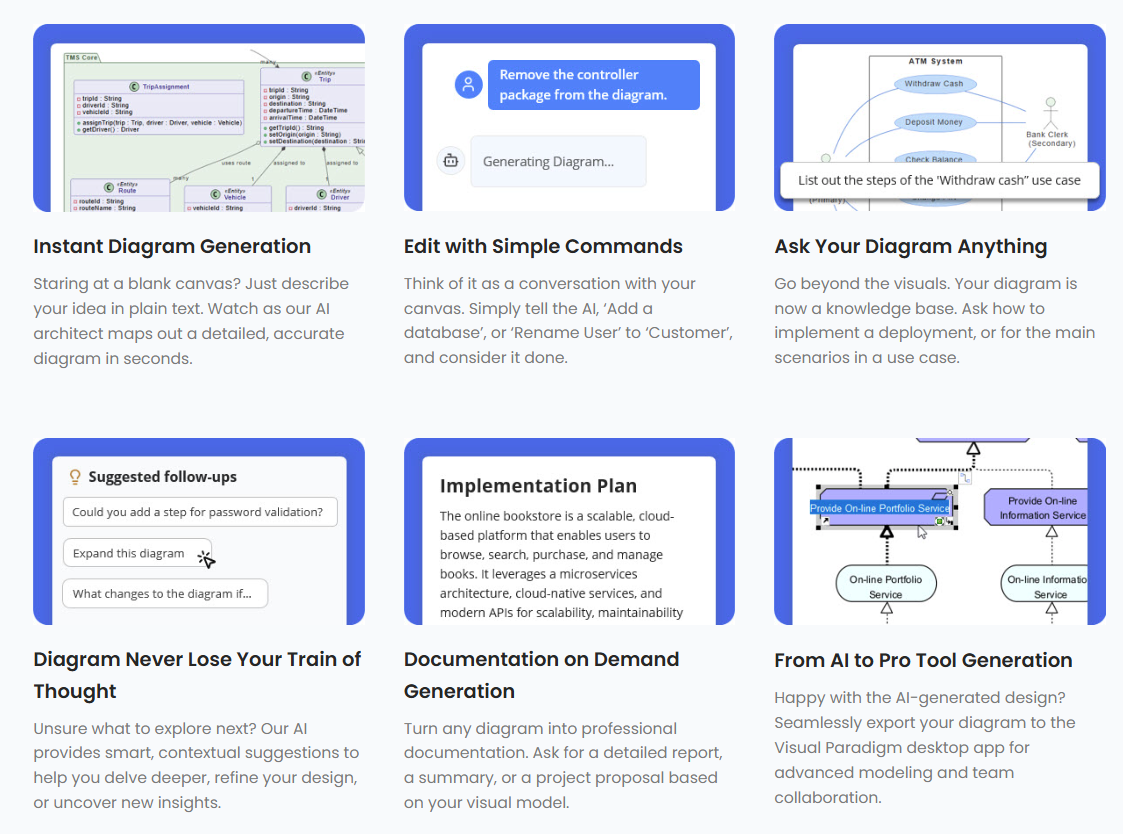
    • DB Modeler AI and AI Diagram Generator — describe your data requirements in plain English (e.g., “We have customers who place orders containing products from multiple categories”), and the AI instantly generates a normalized, professional ERD complete with entities, relationships, and keys.
    • Supports Chen notation for ERD in the AI generator.
    • Ideal for rapid prototyping or when starting from vague business requirements.
  4. Database Engineering & Synchronization
    • Forward engineering — generate complete, error-free DDL scripts (or directly create/update databases) for major DBMS: MySQL, PostgreSQL, Oracle, SQL Server, SQLite, Amazon Redshift, etc.
    • Reverse engineering — import existing databases and instantly reconstruct visual ERDs (extremely helpful for legacy systems or documentation recovery).
    • Patch / diff tool — compare model vs. live database, generate delta scripts to apply changes safely without data loss.
    • Enter sample data directly in ERD entities → export to database for quick seeding.
  5. Team Collaboration & Versioning
    • Real-time concurrent editing (multiple users on the same ERD simultaneously).
    • Built-in conflict detection and smart resolution.
    • Full revision history, commit/update, revert changes.
    • Commenting directly on diagram elements for feedback.
    • Publish & share — generate web links, embed diagrams, export to PDF/image/HTML for stakeholders who don’t have licenses.
    • Centralized cloud repository (VPository) keeps everyone aligned across dev/test/prod environments.
  6. Integration Across the Broader Modeling Ecosystem
    • Link ERD entities to other diagrams: reference a data entity in DFDs, UML class diagrams, wireframes, BPMN processes, etc.
    • Generate ORM code (Hibernate, etc.) from ERD → bridge visual model to application layer.
    • Visual Diff — compare different versions or model vs. database schema.
    • Export professional data dictionary / specifications for documentation & handover.

Quick Comparison: When to Use Which Part of the Ecosystem

Need / Scenario Recommended Platform Key Strengths in ERD Context
Deep reverse engineering, patching prod DB, ORM generation Desktop Full engineering suite, offline work, advanced synchronization
Quick sketches, AI-assisted design from text, zero setup Online AI generation, browser access, lightweight
Real-time team modeling sessions Online (or Desktop + Teamwork Server) Simultaneous editing, commenting, conflict resolution
Enterprise-scale schemas with sub-models Desktop Better performance for very large models
Stakeholder reviews & sharing Both (publish feature) Web links, embeds, PDF exports
Free / non-commercial use Community Edition (Desktop) or Free VP Online account Full ERD editing, limited advanced engineering

In summary, Visual Paradigm’s ecosystem removes friction at every stage of ERD modeling — from initial brainstorming (AI + quick drag-drop), through collaborative refinement and validation, to final implementation and maintenance (round-trip engineering). It is particularly strong when your workflow involves both visual communication and actual database delivery.

ERD Articles

ArchiMate 3.2 Chapter 3

3 Language Structure

This chapter describes the structure of the ArchiMate Enterprise Architecture modeling language. The detailed definition and examples of its standard set of elements and relationships follow in Chapter 4 to Chapter 1

3.1 Language Design Considerations

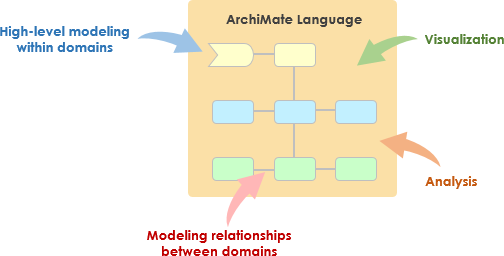
A key challenge in the development of a general metamodel for Enterprise Architecture is to strike a balance between the specificity of languages for individual architecture domains and a very general set of architecture concepts, which reflects a view of systems as a mere set of inter-related entities.

The design of the ArchiMate language started from a set of relatively generic concepts. These have been specialized towards application at different architectural layers, as explained in the following sections. The most important design restriction on the language is that it has been explicitly designed to be as small as possible, but still usable for most Enterprise Architecture modeling tasks. Many other languages try to accommodate the needs of all possible users. In the interest of simplicity of learning and use, the ArchiMate language has been limited to the concepts that suffice for modeling the proverbial 80% of practical cases.

This standard does not describe the detailed rationale behind the design of the ArchiMate language. The interested reader is referred to [1], [2], and [3], which provide a detailed description of the language construction and design considerations.

3.2 Top-Level Language Structure

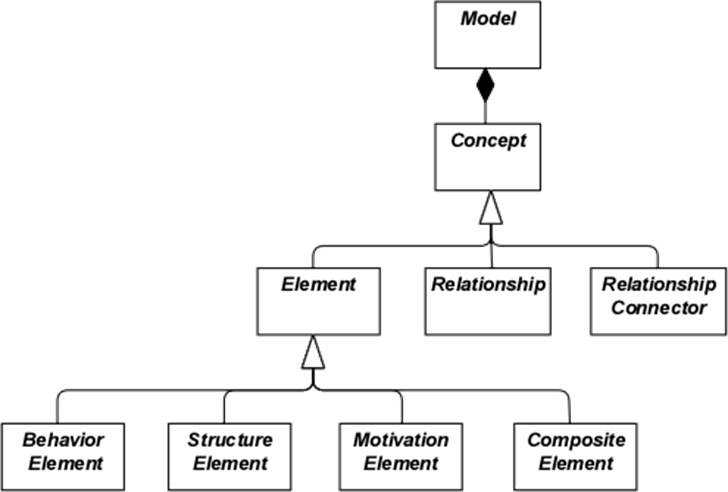
Figure 1 outlines the top-level hierarchical structure of the language:

  • A model is a collection of concepts – a concept is either an element or a relationship
  • An element is either a behavior element, a structure element, a motivation element, or a composite element

Note that these are abstract concepts; they are not intended to be used directly in models. To signify this, they are depicted in white with labels in italics. See Chapter 4 for an explanation of the notation used in Figure 1.

Figure 1: Top-Level Hierarchy of ArchiMate Concepts

3.3 Layering of the ArchiMate Language

The ArchiMate core language defines a structure of generic elements and their relationships, which can be specialized in different layers. Three layers are defined within the ArchiMate core language as follows:

  1. The Business Layer depicts business services offered to customers, which are realized in the organization by business processes performed by business actors.
  2. The Application Layer depicts application services that support the business, and the applications that realize them.
  3. The Technology Layer comprises both information and operational technology. You can model, for example, processing, storage, and communication technology in support of the application world and Business Layers, and model operational or physical technology with facilities, physical equipment, materials, and distribution networks.

The general structure of models within the different layers is similar. The same types of elements and relationships are used, although their exact nature and granularity differ. In the next chapter, the structure of the generic metamodel is presented. In Chapter 8, Chapter 9, and Chapter 10 these elements are specialized to obtain elements specific to a particular layer.

In alignment with service-orientation, the most important relationship between layers is formed by “serving”[1] relationships, which show how the elements in one layer are served by the services of other layers. (Note, however, that services need not only serve elements in another layer, but also can serve elements in the same layer.) A second type of link is formed by realization relationships: elements in lower layers may realize comparable elements in higher layers; e.g., a

“data object” (Application Layer) may realize a “business object” (Business Layer); or an

“artifact” (Technology Layer) may realize either a “data object” or an “application component” (Application Layer).

3.4 The ArchiMate Core Framework

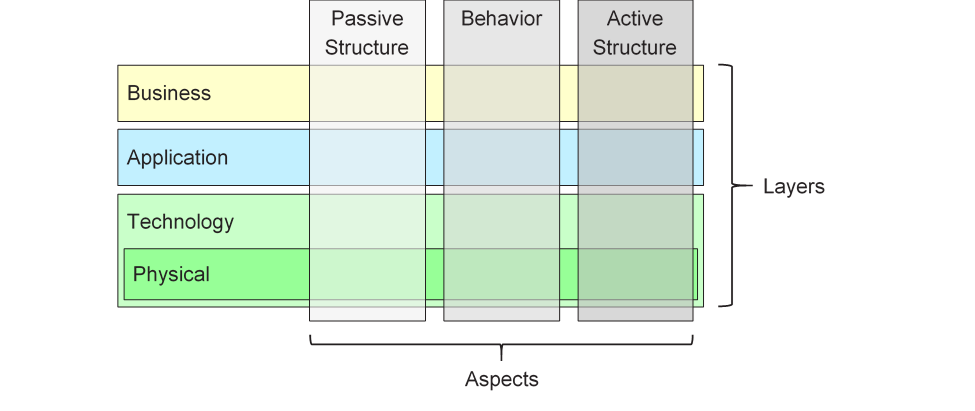
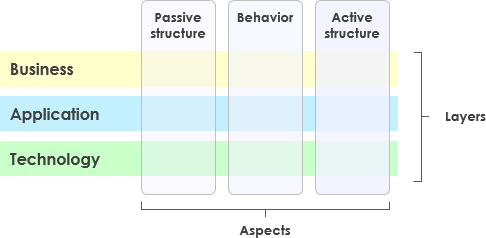
The ArchiMate Core Framework is a framework of nine cells used to classify elements of the ArchiMate core language. It is made up of three aspects and three layers, as illustrated in Figure 2. This is known as the ArchiMate Core Framework.

It is important to understand that the classification of elements based on aspects and layers is only a global one. Real-life architecture elements need not strictly be confined to one aspect or layer because elements that link the different aspects and layers, play a central role in a coherent architectural description. For example, running somewhat ahead of the later conceptual discussions, business roles serve as intermediary elements between “purely behavioral” elements and “purely structural” elements, and it may depend on the context whether a certain piece of software is considered to be part of the Application Layer or the Technology Layer.

Figure 2: ArchiMate Core Framework

The structure of the framework allows for modeling of the enterprise from different viewpoints, where the position within the cells highlights the concerns of the stakeholder. A stakeholder typically can have concerns that cover multiple cells.

The dimensions of the framework are as follows:

  • Layers – the three levels at which an enterprise can be modeled in ArchiMate – Business, Application, and Technology (as described in Section 3.3)
  • Aspects:

— The Active Structure Aspect, which represents the structural elements (the business actors, application components, and devices that display actual behavior; i.e., the

“subjects” of activity)

— The Behavior Aspect, which represents the behavior (processes, functions, events, and services) performed by the actors; structural elements are assigned to behavioral elements, to show who or what displays the behavior

— The Passive Structure Aspect, which represents the objects on which behavior is performed; these are usually information objects in the Business Layer and data objects in the Application Layer, but they may also be used to represent physical objects

These three aspects were inspired by natural language where a sentence has a subject (active structure), a verb (behavior), and an object (passive structure). By using the same constructs that people are used to in their own languages, the ArchiMate language is easier to learn and read.

Since ArchiMate notation is a graphical language where elements are organized spatially, this order is of no consequence in modeling.

A composite element, as shown in Figure 1, is an element that does not necessarily fit in a single aspect (column) of the framework but may combine two or more aspects.

Note that the ArchiMate language does not require the modeler to use any particular layout such as the structure of this framework; it is merely a categorization of the language elements.

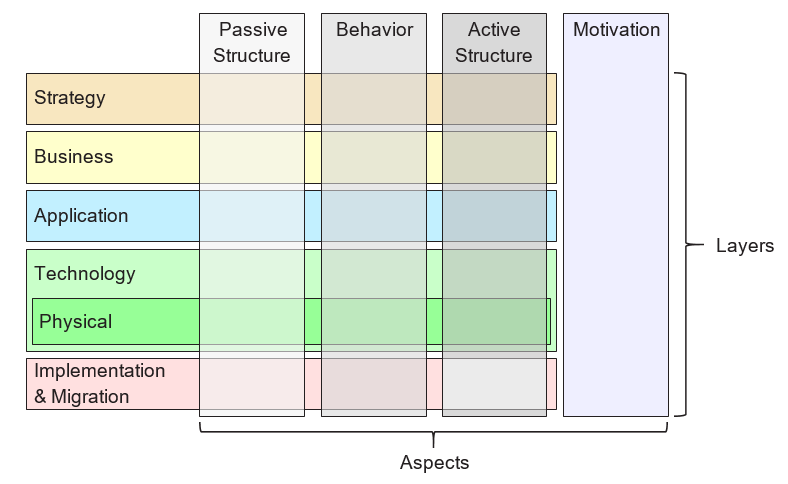
3.5 The ArchiMate Full Framework

The ArchiMate Full Framework, as described in this version of the standard, adds a number of layers and an aspect to the Core Framework_._ The physical elements are included in the Technology Layer for modeling physical facilities and equipment, distribution networks, and materials. As such, these are also core elements. The strategy elements are introduced to model strategic direction and choices. They are described in Chapter 7. The motivation aspect is introduced at a generic level in the next chapter and described in detail in Chapter 6. The implementation and migration elements are described in Chapter 12. The resulting ArchiMate Full Framework is shown in Figure 3.

Figure 3: ArchiMate Full Framework

The ArchiMate language does not define a specific layer for information; however, elements from the passive structure aspect such as business objects, data objects, and artifacts are used to represent information entities. Information modeling is supported across the different ArchiMate layers.

3.6 Abstraction in the ArchiMate Language

The structure of the ArchiMate language accommodates several familiar forms of abstraction and refinement. First of all, the distinction between an external (black-box, abstracting from the contents of the box) and internal (white-box) view is common in systems design. The external view depicts what the system has to do for its environment, while the internal view depicts how it does this.

Second, the distinction between behavior and active structure is commonly used to separate what the system must do and how the system does it from the system constituents (people, applications, and infrastructure) that do it. In modeling new systems, it is often useful to start with the behaviors that the system must perform, while in modeling existing systems, it is often useful to start with the people, applications, and infrastructure that comprise the system, and then analyze in detail the behaviors performed by these active structures.

A third distinction is between conceptual, logical, and physical abstraction levels. This has its roots in data modeling: conceptual elements represent the information the business finds relevant; logical elements provide logical structure to this information for manipulation by information systems; physical elements describe the storage of this information; for example, in the form of files or database tables. In the ArchiMate language, this corresponds with business objects, data objects, and artifacts, along with the realization relationships between them.

The distinction between logical and physical elements has also been carried over to the description of applications. The TOGAF Enterprise Metamodel [4] includes a set of entities that describe business, data, application, and technology components and services to describe architecture concepts. Logical components are implementation or product-independent encapsulations of data or functionality, whereas physical components are tangible software components, devices, etc. This distinction is captured in the TOGAF framework in the form of Architecture Building Blocks (ABBs) and Solution Building Blocks (SBBs). This distinction is again useful in progressing Enterprise Architectures from high-level, abstract descriptions to tangible, implementation-level designs. Note that building blocks may contain multiple elements, which are typically modeled using the grouping concept in the ArchiMate language.

The ArchiMate language has three ways of modeling such abstractions. First, as described in [6], behavior elements such as application and technology functions can be used to model logical components, since they represent implementation-independent encapsulations of functionality. The corresponding physical components can then be modeled using active structure elements such as application components and nodes, assigned to the behavior elements. Second, the ArchiMate language supports the concept of realization. This can best be described by working with the Technology Layer upwards. The Technology Layer defines the physical artifacts and software that realize an application component. It also provides a mapping to other physical concepts such as devices, networks, etc. needed for the realization of an information system. The realization relationship is also used to model more abstract kinds of realization, such as that between a (more specific) requirement and a (more generic) principle, where fulfillment of the requirement implies adherence to the principle. Realization is also allowed between application components and between nodes. This way you can model a physical application or technology component realizing a logical application or technology component, respectively. Third, logical and physical application components can be defined as metamodel-level specializations of the application component element, as described in Chapter 14 (see also the examples in Section 14.2.2). The same holds for the logical and physical technology components of the TOGAF Content Metamodel, which can be defined as specializations of the node element (see Section 14.2.3).

The ArchiMate language intentionally does not support a difference between types and instances. At the Enterprise Architecture abstraction level, it is more common to model types and/or exemplars rather than instances. Similarly, a business process in the ArchiMate language does not describe an individual instance (i.e., one execution of that process). In most cases, a business object is therefore used to model an object type (cf. a UML® class), of which several instances may exist within the organization. For instance, each execution of an insurance application process may result in a specific instance of the insurance policy business object, but that is not modeled in the Enterprise Architecture.

3.7 Concepts and their Notation

The ArchiMate language separates the language concepts (i.e., the constituents of the metamodel) from their notation. Different stakeholder groups may require different notations in order to understand an architecture model or view. In this respect, the ArchiMate language differs from languages such as UML or BPMN™, which have only one standardized notation. The viewpoint mechanism explained in Chapter 13 provides the means for defining such stakeholder-oriented visualizations.

Although the notation of the ArchiMate concepts can (and should) be stakeholder-specific, the standard provides one common graphical notation which can be used by architects and others who develop ArchiMate models. This notation is targeted towards an audience used to existing technical modeling techniques such as Entity Relationship Diagrams (ERDs), UML, or BPMN, and therefore resembles them. In the remainder of this document, unless otherwise noted, the symbols used to depict the language concepts represent the ArchiMate standard notation. This standard notation for most elements consists of a box with an icon in the upper-right corner. In several cases, this icon by itself may also be used as an alternative notation. This standard iconography should be preferred whenever possible so that anyone knowing the ArchiMate language can read the diagrams produced in the language.

3.8 Use of Nesting

Nesting elements inside other elements can be used as an alternative graphical notation to express some relationships. This is explained in more detail in Chapter 5 and in the definition of each of these relationships.

3.9 Use of Colors and Notational Cues

In the metamodel pictures within this standard, shades of grey are used to distinguish elements belonging to the different aspects of the ArchiMate framework, as follows:

  • White for abstract (i.e., non-instantiable) concepts
  • Light grey for passive structures
  • Medium grey for behavior
  • Dark grey for active structures

In ArchiMate models, there are no formal semantics assigned to colors and the use of color is left to the modeler. However, they can be used freely to stress certain aspects in models. For instance, in many of the example models presented in this standard, colors are used to distinguish between the layers of the ArchiMate Core Framework, as follows:

  • Yellow for the Business Layer
  • Blue for the Application Layer
  • Green for the Technology Layer

They can also be used for visual emphasis. A recommended text providing guidelines is Chapter 6 of [1]. In addition to the colors, other notational cues can be used to distinguish between the layers of the framework. A letter M, S, B, A, T, P, or I in the top-left corner of an element can be used to denote a Motivation, Strategy, Business, Application, Technology, Physical, or Implementation & Migration element, respectively. An example of this notation is depicted in Example 34.

The standard notation also uses a convention with the shape of the corners of its symbols for different element types, as follows:

  • Square corners are used to denote structure elements
  • Round corners are used to denote behavior elements
  • Diagonal corners are used to denote motivation elements

[1] Note that this was called “used by” in previous versions of the standard. For the sake of clarity, this name has been changed to “serving”.

Đăng ngày Chuyên mục ArchiMate

Comprehensive Guide to Visual Paradigm Online’s AI Image Translator

Visual Paradigm Online’s AI Image Translator is a sophisticated tool that leverages unique AI OCR (Optical Character Recognition) technology combined with advanced touch-up capabilities to provide a seamless and highly customizable image translation experience. This guide will explore the key features, benefits, and reasons why this tool stands out in the market.

Unique AI OCR Technology

Lost in Translation? Not Anymore! Meet Visual Paradigm Online’s AI Image Translator

Precise Text Detection

The AI Image Translator uses cutting-edge AI-powered OCR to accurately detect and extract text from images. This technology is capable of recognizing text even when it is curved, rotated, or split into multiple sections, ensuring precise and reliable text recognition across various image types and layouts.

Multilingual Support

The tool supports instant translation of detected text into over 40 languages. Utilizing neural machine translation (NMT), it converts the text while preserving the original meaning and context, making it an ideal solution for multilingual needs.

Manual Text Selection

Users have the option to manually select specific text areas for translation. This feature allows for refined accuracy and greater control over the output, ensuring that only the desired text is translated.

Unique Touch-Up Capability

Comprehensive Editing Suite

After translation, the platform provides a comprehensive editing suite that allows users to tweak the translated text directly within the image. This includes adjusting font family, size, style, and color to match the original design or desired aesthetic.

Text Block Management

Users can rearrange, merge, split, rotate, and align text blocks to optimize layout and readability. This ensures that the translated image looks professional and visually coherent.

AI-Powered Image Inpainting

The tool features AI-powered image inpainting to remove OCR leftovers and repair the image background. This eliminates unwanted artifacts, leaving a clean, polished appearance.

Text Block Visibility

The ability to show or hide text block boundaries enhances visibility and allows for precise text structure management, making the editing process more efficient.

Workflow and Export Flexibility

Streamlined Process

The entire process—from image upload, text detection, translation, to editing—is designed to be fast and intuitive. This significantly boosts productivity and saves time.

High-Quality Exports

Final outputs can be exported in high-quality JPG, PNG, or WebP formats. These formats are suitable for digital use, presentations, social media, or print, ensuring versatility in application.

Why Choose Visual Paradigm’s AI Image Translator?

Comprehensive Guide to Visual Paradigm Online’s AI Image Translator

Advanced AI OCR Technology

The AI Image Translator stands out due to its advanced AI OCR technology, which ensures accurate text detection and extraction even in complex image layouts. This precision is crucial for maintaining the integrity of the translated content.

Powerful Touch-Up Features

The comprehensive editing suite and AI-powered image inpainting allow users to customize and perfect the translated content visually and contextually. This level of control is unmatched in the market, making it a top choice for professional use.

User-Friendly Interface

Designed with ease of use in mind, the tool requires no technical skills, making it accessible to a wide range of users, including travelers, educators, designers, business professionals, and students.

Speed and Security

The tool’s fast processing speed and secure platform make it a reliable choice for both personal and professional use. The ability to export in various high-quality formats adds to its versatility.

Comprehensive Solution

Visual Paradigm’s AI Image Translator is a comprehensive solution for multilingual image translation needs. It combines advanced technology with user-friendly features to provide a seamless and efficient translation experience.

Practical Applications

Travel

Instantly translate menus, signs, and documents while abroad to navigate foreign environments effortlessly.

Education

Translate teaching materials, historical documents, and textbooks to support multilingual classrooms and diverse learners.

Business

Localize marketing materials, product labels, and packaging for international markets quickly and accurately.

Content Creation

Adapt infographics, posters, and memes for different language audiences without losing design integrity.

Conclusion

Visual Paradigm Online’s AI Image Translator is a powerful, easy-to-use solution for translating text in images while maintaining design fidelity and offering extensive customization. Its unique AI OCR technology, combined with advanced touch-up capabilities, makes it stand out in the market. Whether you are a traveler, educator, business professional, or content creator, this tool provides the precision, flexibility, and ease of use needed to break down language barriers effortlessly.

Citations:


Comprehensive Guide to Class Diagrams in UML

Introduction

A class diagram is a static type of Unified Modeling Language (UML) diagram that visually represents the structure of a system by showing its classes, attributes, operations, and relationships between objects. It serves as a blueprint for object-oriented software design, providing a clear and concise way to understand and document the architecture of a system.

Purpose and Functionality

Visualizing System Structure

Class diagrams help developers understand and document the structure of a system by showing how different classes interact and relate to each other. This visual representation is crucial for designing robust and maintainable software systems.

Modeling Software

Class diagrams enable the modeling of software at a high level of abstraction, allowing developers to focus on the design without delving into the source code. This abstraction helps in identifying potential issues early in the development process.

Object-Oriented Design

Class diagrams are fundamental to object-oriented modeling. They outline the building blocks of a system and their interactions, making it easier to implement object-oriented principles such as encapsulation, inheritance, and polymorphism.

Data Modeling

Class diagrams can also be used for data modeling, representing the structure and relationships of data within a system. This is particularly useful in database design, where entities and their relationships need to be clearly defined.

Blueprint for Code

Class diagrams serve as a blueprint for constructing executable code for software applications. They provide a clear roadmap for developers, ensuring that the implementation aligns with the designed architecture.

Key Components

Classes

Classes are represented by rectangles divided into three sections:

  1. Class Name: The top section contains the name of the class.
  2. Attributes: The middle section lists the attributes or data members that define the state of the class.
  3. Operations (Methods): The bottom section lists the operations or functions that the class can perform.

Relationships

Relationships between classes are shown using lines and symbols:

  1. Generalization: Represents inheritance, where a class (subclass) inherits attributes and operations from another class (superclass). It is depicted by a hollow arrowhead pointing from the subclass to the superclass.
  2. Aggregation: Indicates that one class contains instances of another class, but the contained class can exist independently. It is depicted by a hollow diamond at the end of the line connected to the containing class.
  3. Composition: A stronger form of aggregation where the contained class cannot exist without the containing class. It is depicted by a filled diamond at the end of the line connected to the containing class.
  4. Association: Represents a relationship between two classes, indicating that one class uses or interacts with another. It is depicted by a solid line connecting the two classes.

Example Diagrams using PlantUML

Basic Class Diagram

Diagram with Aggregation and Composition

Diagram with Association

Example –  Order system

SDE | Uml Class Diagrams

Key Elements

  1. Classes:

    • Customer: Represents the customer placing the order.
      • Attributes: name (String), address (String).
    • Order: Represents the order placed by the customer.
      • Attributes: date (Date), status (String).
      • Operations: calcSubTotal()calcTax()calcTotal()calcTotalWeight().
    • OrderDetail: Represents the details of each item in the order.
      • Attributes: quantity (int), taxStatus (String).
      • Operations: calcSubTotal()calcWeight()calcTax().
    • Item: Represents the items being ordered.
      • Attributes: shippingWeight (float), description (String).
      • Operations: getPriceForQuantity()getTax()inStock().
    • Payment (Abstract Class): Represents the payment for the order.
      • Attributes: amount (float).
    • Cash: Subclass of Payment, represents cash payments.
      • Attributes: cashTendered (float).
    • Check: Subclass of Payment, represents check payments.
      • Attributes: name (String), bankID (String), isAuthorized (boolean).
    • Credit: Subclass of Payment, represents credit card payments.
      • Attributes: number (String), type (String), expDate (Date), isAuthorized (boolean).
  2. Relationships:

    • Association:
      • Customer and Order: A customer can place multiple orders (0..* multiplicity on the Order side).
      • Order and OrderDetail: An order can have multiple order details (1..* multiplicity on the OrderDetail side).
      • OrderDetail and Item: Each order detail is associated with one item (1 multiplicity on the Item side).
    • Aggregation:
      • Order and OrderDetail: Indicates that OrderDetail is a part of Order, but OrderDetail can exist independently.
    • Generalization:
      • Payment and its subclasses (CashCheckCredit): Indicates inheritance, where Cash, Check, and Credit are specific types of Payment.
    • Role:
      • OrderDetail and Item: The role line item indicates the specific role of OrderDetail in the context of an Order.
  3. Multiplicity:

    • Indicates the number of instances of one class that can be associated with a single instance of another class. For example, a Customer can place multiple Orders (0..*).
  4. Abstract Class:

    • Payment: Marked as an abstract class, meaning it cannot be instantiated directly and serves as a base class for other payment types.

Explanation

  • Customer: Represents the entity placing the order, with basic attributes like name and address.
  • Order: Represents the order itself, with attributes like date and status, and operations to calculate subtotal, tax, total, and total weight.
  • OrderDetail: Represents the details of each item in the order, including quantity and tax status, with operations to calculate subtotal, weight, and tax.
  • Item: Represents the items being ordered, with attributes like shipping weight and description, and operations to get price for quantity, tax, and stock status.
  • Payment: An abstract class representing the payment for the order, with an attribute for the amount. It has subclasses for different payment methods:
    • Cash: Represents cash payments with an attribute for the cash tendered.
    • Check: Represents check payments with attributes for the name, bank ID, and authorization status.
    • Credit: Represents credit card payments with attributes for the card number, type, expiration date, and authorization status.

The diagram effectively captures the structure and relationships within an order processing system, providing a clear visual representation of how different components interact.

Conclusion

Class diagrams are an essential tool in UML modeling, providing a clear and structured way to represent the architecture of a system. By understanding the key components and relationships, developers can create robust and maintainable software designs. Using tools like PlantUML, these diagrams can be easily visualized and shared among team members, enhancing collaboration and ensuring a consistent understanding of the system’s structure.

References

  1. Visual Paradigm Online Free Edition:

    • Visual Paradigm Online (VP Online) Free Edition is a free online drawing software that supports Class Diagrams, other UML diagrams, ERD tools, and Organization Chart tools. It features a simple yet powerful editor that allows you to create Class Diagrams quickly and easily. The tool offers unlimited access with no restrictions on the number of diagrams or shapes you can create, and it is ad-free. You own the diagrams you create for personal and non-commercial use. The editor includes features such as drag-to-create shapes, inline editing of class attributes and operations, and a variety of formatting tools. You can also print, export, and share your work in different formats (PNG, JPG, SVG, GIF, PDF) 123.
  2. Impressive Drawing Features:

    • Visual Paradigm Online provides advanced formatting options to enhance your diagrams. You can position shapes precisely using alignment guides and format your Class Diagrams with shape and line formatting options, font styles, rotatable shapes, embedded images and URLs, and shadow effects. The tool is cross-platform compatible (Windows, Mac, Linux) and can be accessed through any web browser. It also supports Google Drive integration for seamless saving and accessing of your diagrams 23.
  3. Comprehensive Diagramming Options:

    • Visual Paradigm Online supports a wide range of diagram types, including UML diagrams (class, use case, sequence, activity, state, component, and deployment diagrams), ERD tools, Organization Charts, Floor Plan Designers, ITIL, and Business Concept Diagrams. The tool is designed to be easy to use, with drag-and-drop functionality and smart connectors that snap into place. It also offers a rich set of formatting options, including over 40 connector types and various paint options 45.
  4. Learning and Customization:

    • Visual Paradigm provides an easy-to-use platform for creating and managing class diagrams, making it an excellent choice for software developers and engineers. You can customize your class diagrams by changing colors, fonts, and layout. The tool also supports creating relationships between classes, such as associations, inheritance, and dependencies. Visual Paradigm is a powerful UML modeling tool that helps in representing the static structure of a system, including the system’s classes, their attributes, methods, and the relationships between them 67.
  5. Community and Support:

    • Visual Paradigm Community Edition is a free UML software that supports all UML diagram types. It is designed to help users learn UML faster, easier, and quicker. The tool is intuitive and allows you to create your own Class Diagrams with ease. Visual Paradigm is trusted by over 320,000 professionals and organizations, including small businesses, Fortune 500 companies, universities, and government sectors. It is used to prepare the next generation of IT developers with the specialized skills needed for the workspace 89.

These references highlight the comprehensive features and benefits of using Visual Paradigm for creating class diagrams, making it a recommended tool for both individual and professional use.

Comprehensive Guide to UML Activity Diagrams: Key Concepts and Examples

Introduction

In the realm of software development and system modeling, UML (Unified Modeling Language) activity diagrams play a crucial role in visualizing the workflow of processes within a system. These diagrams provide a clear and structured way to represent the sequence of activities, decisions, and interactions involved in achieving specific goals. UML (Unified Modeling Language) activity diagrams are a powerful tool for modeling the workflow of a system, illustrating the sequence of activities, decisions, and processes involved in achieving a specific goal. This guide will cover the key concepts of UML activity diagrams, provide examples, and recommend Visual Paradigm as an ideal tool for IT software development.

What is Activity Diagram?

This article delves into the intricacies of UML activity diagrams, using a detailed example to illustrate the lifecycle of an assignment, from issuance to grading and return, involving both a teacher and a student. By breaking down the key components and workflow of the diagram, we aim to provide a comprehensive understanding of how UML activity diagrams can be used to model complex processes effectively. Whether you are a seasoned developer or new to UML, this guide will help you grasp the fundamentals and advanced concepts of activity diagrams, enabling you to apply them to your own projects with confidence.

Key Concepts of UML Activity Diagrams

What is Activity Diagram?

  1. Activities:

    • Represent actions or tasks performed within the system.
    • Depicted as rounded rectangles.
  2. Actions:

    • The most basic unit of work in an activity diagram.
    • Represented as rectangles with rounded corners.
  3. Control Flow:

    • Shows the sequence in which activities are performed.
    • Represented by solid arrows connecting activities.
  4. Decision Nodes:

    • Represent points where the flow of control can branch based on conditions.
    • Depicted as diamonds.
  5. Fork and Join Nodes:

    • Fork nodes split a single flow into multiple concurrent flows.
    • Join nodes merge multiple flows back into a single flow.
    • Both are depicted as horizontal bars.
  6. Initial and Final Nodes:

    • Initial node represents the start of the workflow.
    • Final node represents the end of the workflow.
    • Both are depicted as black circles, with the initial node having an outgoing arrow and the final node having an incoming arrow.
  7. Object Flow:

    • Shows the flow of objects between activities.
    • Represented by dashed arrows.

Examples of UML Activity Diagrams

The activity diagram models the problem of managing the lifecycle of an assignment, from issuance to grading and return, involving interactions between a teacher and a student. The key aspects of the problem include:

  1. Assignment Issuance and Study:

    • The teacher issues an assignment, and the student studies it.
    • The student’s perception of the assignment’s difficulty influences their approach to completing it.
  2. Assignment Completion and Submission:

    • The student completes the assignment and submits it to the teacher.
    • The student may decide to give up on the assignment based on certain conditions.
  3. Deadline Management:

    • The teacher sets a deadline for the assignment submission.
    • The workflow accounts for the deadline and proceeds accordingly.
  4. Grading and Return:

    • The teacher grades the submitted assignment and stores the grades.
    • The graded assignment is returned to the student.
  5. Concurrent Activities:

    • The diagram models concurrent activities, such as grading the assignment and storing the grades, using fork and join nodes.

Key Components and Workflow

  1. Initial Node:

    • The process begins with the Initial Node, represented by a black circle. This indicates the start of the workflow.
  2. Issue Assignment (Teacher):

    • The teacher issues the assignment, represented by the action “Issue Assignment”.
    • An Object Node (Assignment) is created, indicating that an assignment object is generated.
  3. Assignment (Object Flow):

    • The assignment object flows from the teacher to the student, represented by the Object Flow arrow.
  4. Study Assignment (Student):

    • The student receives the assignment and begins studying it, represented by the action “Study Assignment”.
    • This action is within the Student swimlane, indicating that it is the student’s responsibility.
  5. Decision Node (Control Flow):

    • The student decides whether the assignment is hard or easy, represented by the Decision Node (diamond shape).
    • Depending on the decision, the control flow branches into two paths:
      • [hard]: If the assignment is hard, the student continues to study.
      • [easy]: If the assignment is easy, the student proceeds to complete the assignment.
  6. Complete Assignment (Student):

    • The student completes the assignment, represented by the action “Complete Assignment”.
    • Guard condition [give up] determines whether the student submits the assignment or gives up.
  7. Submit Assignment (Student):

    • If the student completes the assignment, they submit it, represented by the action “Submit Assignment”.
    • The assignment object flows back to the teacher, represented by the Object Flow arrow.
  8. Accept Time Event Action (Teacher):

    • The teacher sets a deadline for the assignment, represented by the Accept Time Event Action (hourglass symbol).
    • If the deadline is reached, the workflow proceeds to the Fork Node.
  9. Fork Node:

    • The Fork Node (thick horizontal bar) splits the workflow into two concurrent paths:
      • Grade Work (Teacher): The teacher grades the submitted assignment, represented by the action “Grade Work”.
      • Data Store Node: The graded assignment is stored in a datastore, represented by the Data Store Node (<<datastore>> Student Grade Sheet).
  10. Return Work (Teacher):

    • The teacher returns the graded work to the student, represented by the action “Return Work”.
    • The assignment object flows back to the student, represented by the Object Flow arrow.
  11. Get Graded Work (Student):

    • The student receives the graded work, represented by the action “Get Graded Work”.
  12. Activity Final Node:

    • The process ends with the Activity Final Node, represented by a black circle with a border, indicating the completion of the workflow.

This UML activity diagram effectively models the workflow of managing an assignment, highlighting the interactions between the teacher and the student, the decision points, and the concurrent activities involved. It provides a clear visual representation of the assignment lifecycle, from issuance to grading and return, making it easier to understand and manage the process.

Recommending Visual Paradigm for IT Software Development

While the examples above illustrate the basics of UML activity diagrams, Visual Paradigm offers a more comprehensive and visual approach to software development. Here’s why Visual Paradigm is an ideal tool for IT software development:

  1. Comprehensive UML Support:

    • Visual Paradigm supports all types of UML diagrams, including activity diagrams, class diagrams, sequence diagrams, and more.
    • It provides a rich set of tools and features for creating, editing, and managing UML diagrams.
  2. User-Friendly Interface:

    • The intuitive drag-and-drop interface makes it easy to create and modify UML diagrams.
    • The tool offers a wide range of customization options to tailor diagrams to specific needs.
  3. Integration with Other Tools:

    • Visual Paradigm integrates seamlessly with other development tools, such as IDEs, version control systems, and project management tools.
    • This integration ensures a smooth workflow and enhances productivity.
  4. Collaboration Features:

    • Visual Paradigm supports collaborative work, allowing multiple users to work on the same project simultaneously.
    • The tool includes features for version control, team collaboration, and real-time updates.
  5. Advanced Modeling Capabilities:

    • Visual Paradigm offers advanced modeling capabilities, including support for agile methodologies, enterprise architecture, and system modeling.
    • The tool provides a comprehensive suite of features for modeling complex systems and workflows.
  6. Extensive Documentation and Support:

    • Visual Paradigm provides extensive documentation, tutorials, and support resources to help users get started and master the tool.
    • The tool offers a range of learning resources, including video tutorials, guides, and examples.

Conclusion

UML activity diagrams are a powerful tool for modeling the workflow of a system, illustrating the sequence of activities, decisions, and processes involved in achieving a specific goal. The examples provided demonstrate the basics of creating UML activity diagrams. However, for a more comprehensive and visual approach to software development, Visual Paradigm is an ideal tool. With its comprehensive UML support, user-friendly interface, integration with other tools, collaboration features, advanced modeling capabilities, and extensive documentation and support, Visual Paradigm provides everything needed to create, manage, and collaborate on UML diagrams effectively. Whether you are a beginner or an experienced developer, Visual Paradigm offers the tools and support needed to bring your software development projects to life.

Comprehensive Tutorial: Convert a PDF to a Wonderful Flipbook in a Few Clicks Using Visual Paradigm Online

Introduction

In today’s digital age, presenting content in an engaging and interactive manner is crucial for capturing and retaining audience attention. One effective way to achieve this is by converting traditional PDF documents into dynamic flipbooks. Visual Paradigm Online offers a powerful and user-friendly solution for this transformation with its Fliplify tool. This comprehensive tutorial will guide you through the process of converting a PDF to a wonderful flipbook in just a few clicks, highlighting the key features and benefits of using Visual Paradigm Online. Whether you are creating educational materials, business presentations, or personal projects, this guide will help you leverage the full potential of flipbooks to make your content stand out.

Can I turn my PDF into a Flipbook? - Visual Paradigm Blog

Converting a PDF to an engaging flipbook can significantly enhance the presentation and interactivity of your content. Visual Paradigm Online offers a seamless and user-friendly way to achieve this with its powerful Fliplify tool. This tutorial will guide you through the process of converting a PDF to a flipbook in just a few clicks, highlighting the key features and benefits of using Visual Paradigm Online.

Transform Your PDFs into Engaging Flipbooks with Our Powerful Tools - Visual Paradigm Blog

Step 1: Getting Started with Visual Paradigm Online

  1. Sign Up and Log In:

    • Visit the Visual Paradigm Online website and sign up for an account if you don’t already have one.
    • Log in to access the suite of tools, including Fliplify for creating flipbooks.
  2. Navigate to Fliplify:

    • Once logged in, navigate to the Fliplify section from the dashboard. This is where you will convert your PDF into a flipbook.

Step 2: Uploading Your PDF

  1. Upload the PDF:

    • Click on the “Create Flipbook” button and select the option to upload a PDF.
    • Choose the PDF file from your computer or cloud storage that you want to convert into a flipbook.
  2. Processing the PDF:

    • Visual Paradigm Online will automatically process the uploaded PDF and convert it into a flipbook format. This process typically takes just a few moments, depending on the size of the PDF.

Step 3: Customizing Your Flipbook

  1. Choose a Template:

    • Browse through the available flipbook templates and select one that best suits your content. Templates provide a foundation for your design, allowing for easy customization 26.

Flipping into the Future: The Magic of Flipbooks with Animation Capability  - Visual Paradigm Blog

  1. Customize the Layout:

    • Use the intuitive interface to customize the layout of your flipbook. Adjust the page layout, add interactive elements like annotations, highlights, and comments to enhance engagement 24.
  2. Add Interactive Elements:

    • Incorporate interactive elements such as links, videos, and audio clips to make your flipbook more engaging. These elements can be easily added using the drag-and-drop interface 25.
  3. Integrate Animations (Optional):

    • If you want to enhance your flipbook with animations, you can use Visual Paradigm’s AniFuzion tool to create or import 2D and 3D animations. These animations can be seamlessly integrated into your flipbook to add visual appeal 20.

Step 4: Adding Text-to-Speech (TTS) and AI Human Voices

  1. Enable TTS:

    • Incorporate Text-to-Speech (TTS) to narrate your flipbook. This feature enhances the interactive experience, making the content more engaging and accessible 20.
  2. Customize AI Human Voices:

    • Customize the AI human voices to match the tone and style of your flipbook. Adjust the voice settings to ensure a natural and professional narration.

Step 5: Previewing and Publishing Your Flipbook

  1. Preview the Flipbook:

    • Preview your flipbook to ensure it meets your expectations. Check the layout, interactive elements, and animations to make sure everything is in place.
  2. Publish the Flipbook:

    • Once satisfied, click on the “Publish” button to make your flipbook live. You can share the flipbook with your audience by providing a link or embedding it on your website 24.

Step 6: Organizing Your Flipbooks

  1. Create a Virtual Bookshelf:

    • Navigate to the virtual bookshelf feature in Visual Paradigm Online.
    • Create a new bookshelf and customize its appearance to match your branding or personal style.
  2. Add Flipbooks to the Bookshelf:

    • Add your published flipbooks to the virtual bookshelf. Organize them by category, topic, or any other criteria that make sense for your content.
    • Customize the thumbnails and descriptions of each flipbook to make them visually appealing and informative.
  3. Share Your Virtual Bookshelf:

    • Share your virtual bookshelf with your audience by providing a link or embedding it on your website.
    • Promote your bookshelf through social media, email newsletters, and other marketing channels to reach a wider audience.

Flipping Book Animation Software - Visual Paradigm Blog

Conclusion

Converting a PDF to a wonderful flipbook using Visual Paradigm Online is a straightforward and engaging way to present your content. With features like customizable templates, interactive elements, animations, text-to-speech (TTS), and AI human voices, you can create captivating flipbooks that stand out. Whether for educational content, business presentations, or personal projects, Visual Paradigm’s tools offer a comprehensive suite of features to bring your ideas to life and captivate your audience. By following this tutorial, you can transform your static PDFs into dynamic and interactive flipbooks, enhancing the presentation and engagement of your content with ease.

Comprehensive Guide to Creating Flipbooks and Organizing Them into a Beautiful Virtual Bookshelf

Introduction

Creating flipbooks with Visual Paradigm Online is a seamless and engaging way to present your content. Whether you’re designing educational materials, business presentations, or personal projects, Visual Paradigm’s tools offer a comprehensive suite of features to bring your ideas to life. This guide will walk you through the process of creating flipbooks, incorporating 2D and 3D animations, text-to-speech (TTS), and AI human voices, and organizing them into a beautiful virtual bookshelf.

Fliplify:Visual Paradigm Online的翻页书设计大师| 學習EA, Agile & UML 和使用Visual Paradigm 技能- 點部落

Step 1: Getting Started with Visual Paradigm Online

  1. Sign Up and Log In:

    • Visit the Visual Paradigm Online website and sign up for an account if you don’t already have one.
    • Log in to access the suite of tools, including Fliplify for creating flipbooks and AniFuzion for adding animations.
  2. Explore the Dashboard:

    • Familiarize yourself with the dashboard, which provides access to various tools and features.
    • Navigate to the Fliplify section to start creating your flipbook.

Make Your Flipbook Stand Out with AniFuzion - Fliplify

Step 2: Creating a Flipbook with Fliplify

  1. Choose a Template or Start from Scratch:

    • Browse through the available flipbook templates or choose to start from scratch. Templates provide a foundation for your design, while starting from scratch allows for more customization 26.
  2. Design Your Flipbook:

    • Use the intuitive interface to design your flipbook. Add pages, customize the layout, and incorporate interactive elements such as annotations, highlights, and comments 24.
    • Utilize the advanced design tools to ensure a polished and professional presentation.
  3. Integrate 2D and 3D Animations:

    • Use AniFuzion to create or import 2D and 3D animations. These animations can be seamlessly integrated into your flipbook to enhance engagement and visual appeal 20.
    • Ensure that the animations flow seamlessly with the rest of the content, using the interactive features of Fliplify to enhance comprehension 25.

Visual Paradigm Online: Revolutionizing Digital Content Creation - Cybermedian

  1. Add Text-to-Speech (TTS) and AI Human Voices:

    • Incorporate TTS and AI human voices to narrate your flipbook. This feature enhances the interactive experience, making the content more engaging and accessible 20.
    • Customize the voice settings to match the tone and style of your flipbook.

Bring Your Characters to Life with Enhanced TTS Support - Visual Paradigm  News

  1. Preview and Publish:

    • Preview your flipbook to ensure it meets your expectations. Make any necessary adjustments to the design and content.
    • Once satisfied, publish the flipbook and share it with your audience 24.

Step 3: Organizing Flipbooks into a Virtual Bookshelf

  1. Create a Virtual Bookshelf:

    • Navigate to the virtual bookshelf feature in Visual Paradigm Online.
    • Create a new bookshelf and customize its appearance to match your branding or personal style.
  2. Add Flipbooks to the Bookshelf:

    • Add your published flipbooks to the virtual bookshelf. Organize them by category, topic, or any other criteria that make sense for your content.
    • Customize the thumbnails and descriptions of each flipbook to make them visually appealing and informative.
  3. Customize the Bookshelf Layout:

    • Arrange the flipbooks on the bookshelf in a visually appealing manner. Use the layout tools to adjust the positioning and spacing of the flipbooks.
    • Add interactive elements, such as links to related content or additional resources, to enhance the user experience.
  4. Share Your Virtual Bookshelf:

    • Share your virtual bookshelf with your audience by providing a link or embedding it on your website.
    • Promote your bookshelf through social media, email newsletters, and other marketing channels to reach a wider audience.

Step 4: Enhancing Engagement with Interactive Features

  1. Interactive Annotations:

    • Add annotations, highlights, and comments to your flipbooks to enhance engagement and comprehension. These interactive elements make the content more dynamic and personalized 25.
  2. Quizzes and Polls:

    • Incorporate quizzes and polls within your flipbooks to engage your audience and gather feedback. This feature is particularly useful for educational content and business presentations.
  3. Multimedia Integration:

    • Integrate multimedia elements, such as videos, images, and audio clips, to enhance the visual appeal and engagement of your flipbooks.
    • Ensure that the multimedia elements are seamlessly integrated with the rest of the content, using the interactive features of Fliplify to enhance comprehension 25.

How to Add Voice to Characters by Text-to-Speech with Perfect Lip Sync-  AniFuzion


Conclusion

Creating flipbooks with Visual Paradigm Online and organizing them into a beautiful virtual bookshelf is a powerful way to present your content engagingly and interactively. With features like 2D and 3D animations, TTS, and AI human voices, you can enhance the visual appeal and engagement of your flipbooks. Whether for educational content, business presentations, or personal projects, Visual Paradigm’s tools offer a comprehensive suite of features to bring your ideas to life and captivate your audience.

Comprehensive Tutorial for Creating Wonderful Animation Flipbooks with Visual Paradigm’s AniFuzion and Fliplify

Introduction

Creating an animation flipbook combines the engaging nature of animations with the interactive experience of flipbooks. Visual Paradigm’s AniFuzion and Fliplify tools offer a seamless way to achieve this, allowing users to create captivating content that stands out. This tutorial will guide you through the process of creating an animation flipbook, highlighting why these tools are an excellent choice and how they can make your content more attractive and engaging.

Why Choose Visual Paradigm’s AniFuzion and Fliplify?

Elevate Your Animations with Sound in AniFuzion - AniFuzion

  1. User-Friendly Interface:

    • Both AniFuzion and Fliplify provide intuitive interfaces that make it easy for users, regardless of their technical expertise, to create professional-quality animations and flipbooks 2024.
  2. Comprehensive Toolkit:

    • These tools offer a wide range of features, including 2D and 3D animation, customizable templates, and interactive elements, ensuring that users have everything they need to create engaging content 2126.
  3. Seamless Integration:

    • AniFuzion and Fliplify integrate seamlessly with each other and with other features of Visual Paradigm Online, creating a comprehensive suite for all your creative needs 2126.
  4. High-Quality Output:

    • The tools ensure that the final output is of high quality, with polished and professional-looking animations and flipbooks that captivate audiences 2024.
  5. Customer Support:

    • Visual Paradigm provides excellent customer support, assisting users with any issues or questions they may have while using the tools 27.

How Animated Flipbooks Make Content Attractive and Engaging

Flipping Book Animation Software - Visual Paradigm Blog

  1. Visual Appeal:

    • Animated flipbooks combine the visual appeal of animations with the interactive experience of flipbooks, making the content more engaging and visually appealing 20.
  2. Interactive Experience:

    • The interactive nature of flipbooks allows users to engage with the content in a more dynamic way, enhancing comprehension and retention 25.
  3. Storytelling:

    • Animated flipbooks enable users to tell stories in a more compelling way, using animations to bring characters and scenes to life 21.
  4. Versatility:

    • Animated flipbooks can be used for a wide range of purposes, from educational content and business presentations to marketing materials and personal projects 2426.

Tutorial: Creating an Animation Flipbook with AniFuzion and Fliplify

Visual Paradigm Flipbook Maker: Elevate Your Digital Presence with Dynamic and Engaging Flipbooks - Visual Paradigm Blog

Step 1: Create Animations with AniFuzion
  1. Sign Up and Log In:

    • Sign up for a Visual Paradigm Online account and log in to access AniFuzion.
  2. Choose a Template or Start from Scratch:

    • Browse through the available templates or choose to start from scratch. Templates provide a foundation for your animation, while starting from scratch allows for more customization 21.
  3. Design Your Animation:

    • Use the intuitive interface to design your animation. Add characters, scenes, and props, and customize their appearance and actions. Utilize the 2D and 3D animation features to bring your vision to life 20.
  4. Add Interactive Elements:

    • Incorporate interactive elements, such as annotations, highlights, and comments, to enhance engagement and comprehension 25.
  5. Preview and Export:

    • Preview your animation to ensure it meets your expectations. Once satisfied, export the animation in the desired format 20.
Step 2: Create a Flipbook with Fliplify
  1. Upload Your Animation:

    • Log in to Visual Paradigm Online and access Fliplify. Upload your exported animation to use as content for your flipbook 24.
  2. Choose a Template or Start from Scratch:

    • Browse through the available flipbook templates or choose to start from scratch. Templates provide a foundation for your flipbook, while starting from scratch allows for more customization 26.
  3. Design Your Flipbook:

    • Use the intuitive interface to design your flipbook. Add pages, customize the layout, and incorporate interactive elements, such as annotations and highlights 24.
  4. Integrate Your Animation:

    • Integrate your animation into the flipbook, ensuring that it flows seamlessly with the rest of the content. Utilize the interactive features of Fliplify to enhance the engagement and comprehension of the animation 25.
  5. Preview and Publish:

    • Preview your flipbook to ensure it meets your expectations. Once satisfied, publish the flipbook and share it with your audience 24.

Conclusion

Creating an animation flipbook with Visual Paradigm’s AniFuzion and Fliplify is a powerful way to make your content more attractive and engaging. With their user-friendly interfaces, comprehensive toolkits, seamless integration, and high-quality output, these tools provide everything needed to create captivating animation flipbooks. Whether for educational content, business presentations, marketing materials, or personal projects, AniFuzion and Fliplify offer a seamless and productive experience, making them an ideal choice for all your creative needs.

Comprehensive Tutorial for Creating Stunning Flipbooks with Fliplify of Visual Paradigm Online

Introduction

Fliplify, part of Visual Paradigm Online, is a powerful tool designed to help users create captivating digital flipbooks and slideshows. Whether you are starting from scratch or uploading existing content, Fliplify offers a seamless and user-friendly experience. This tutorial will guide you through the process of creating stunning flipbooks, highlighting the key features, application areas, and reasons why Fliplify stands out.

Why Choose Fliplify?

  1. User-Friendly Interface:

    • Fliplify provides an intuitive and user-friendly interface that makes it easy for users to create professional-looking flipbooks without the need for extensive technical knowledge 24.
  2. Versatile Content Creation:

    • Users can craft flipbooks from various sources, including PDFs, PowerPoints, and more. This versatility allows for a wide range of content to be transformed into engaging flipbooks 24.
  3. Customization Options:

    • Fliplify empowers users to customize every aspect of their flipbooks, from layout and design to interactive elements. This ensures a polished and professional presentation tailored to specific needs 24.
  4. Interactive Elements:

    • The tool allows for the addition of interactive elements, such as annotations, highlights, and comments, enhancing the engagement and comprehension of the content 25.
  5. Seamless Integration:

    • Fliplify seamlessly integrates with other features of Visual Paradigm Online, creating a comprehensive suite for all your creative needs. This integration ensures a smooth and productive experience 26.

Application Areas

  1. Business Presentations:

    • Create engaging and interactive business presentations that captivate audiences and effectively communicate key messages.
  2. Educational Content:

    • Develop educational materials that are visually appealing and interactive, enhancing the learning experience for students.
  3. Marketing Materials:

    • Design digital brochures, product catalogs, and other marketing materials that stand out and engage potential customers.
  4. Personal Projects:

    • Use Fliplify for personal projects, such as creating photo albums, travel journals, or any other content that benefits from an interactive and visually appealing format.

Why Fliplify Stands Out

  1. Comprehensive Toolkit:

    • Fliplify offers a robust set of tools for creating, editing, and publishing flipbooks. From basic design elements to advanced customization options, Fliplify provides everything needed to create stunning flipbooks 26.
  2. Easy to Use:

    • The platform is designed to be easy to use, with a straightforward interface that allows users to focus on their creative projects without the hassle of complex software installations 24.
  3. High-Quality Output:

    • Fliplify ensures that the published flipbooks are of high quality, with professional-looking designs and interactive elements that enhance the user experience 24.
  4. Customer Support:

    • Visual Paradigm Online provides excellent customer support, assisting users with any issues or questions they may have while using the Flipbook feature 27.

Feature List

  1. Customizable Templates:

    • Choose from a variety of customizable templates to start your flipbook project. These templates provide a foundation for your design, allowing for easy customization to fit your specific needs 26.
  2. Interactive Annotations:

    • Add annotations, highlights, and comments to your flipbooks to enhance engagement and comprehension. These interactive elements make the content more dynamic and personalized 25.
  3. Multiple File Format Support:

    • Convert various file types into flipbooks, including PDFs, PowerPoints, eBooks, and spreadsheets. This versatility allows for a wide range of content to be transformed into engaging flipbooks 27.
  4. Advanced Design Tools:

    • Utilize advanced design tools to customize the layout, design, and interactive elements of your flipbooks. These tools ensure a polished and professional presentation 26.
  5. Seamless Integration with Visual Paradigm Online:

    • Fliplify integrates seamlessly with other features of Visual Paradigm Online, creating a comprehensive suite for all your creative needs. This integration ensures a smooth and productive experience 26.

Conclusion

Fliplify of Visual Paradigm Online stands out as a powerful and user-friendly tool for creating stunning flipbooks. With its intuitive interface, versatile content creation options, and advanced design tools, Fliplify provides everything needed to create engaging and interactive flipbooks. Whether for business presentations, educational content, marketing materials, or personal projects, Fliplify offers a seamless and productive experience, making it an ideal choice for all your flipbook needs.

Comprehensive Guide to Visual Paradigm’s TOGAF Guide-Through Process

Introduction

Visual Paradigm’s TOGAF Guide-Through Process is a powerful tool designed to streamline the adoption of the TOGAF Architecture Development Method (ADM). It provides step-by-step guidance, instructions, and real-life examples to support enterprise architecture development. This comprehensive guide will explore the key features, benefits, and application areas of Visual Paradigm’s TOGAF Guide-Through Process, highlighting why it stands out in the field of enterprise architecture.

Transform Your Business with Visual Paradigm and TOGAF - Visual Paradigm Guides

Key Features

  1. Step-by-Step Guidance:

    • The Guide-Through Process offers detailed, step-by-step instructions for each phase of the TOGAF ADM, ensuring that users can navigate the complexities of enterprise architecture development with ease 1112.
  2. Integration with ArchiMate:

    • Visual Paradigm supports the integration of ArchiMate with TOGAF ADM, providing a powerful combination for enterprise architecture initiatives. ArchiMate 3, with its versatile notation system, allows architects to express complex models effectively 1314.
  3. Automated Task Management:

    • The tool enhances the entire process with automated task management and notifications, enabling users to develop architecture deliverables incrementally and collaboratively 15.
  4. Visual Process Maps:

    • The software features visual process maps that help users navigate through the entire enterprise architecture process easily. It provides a full set of planning, design, and development tools to complete ADM activities 14.
  5. Comprehensive Toolkit:

    • Visual Paradigm offers a range of tools tailored for ADM activities, including ArchiMate diagrams for modeling business, IT, and physical aspects of enterprise architecture. These tools provide a comprehensive view of the architecture, making it easier to understand and implement TOGAF 14.

Benefits

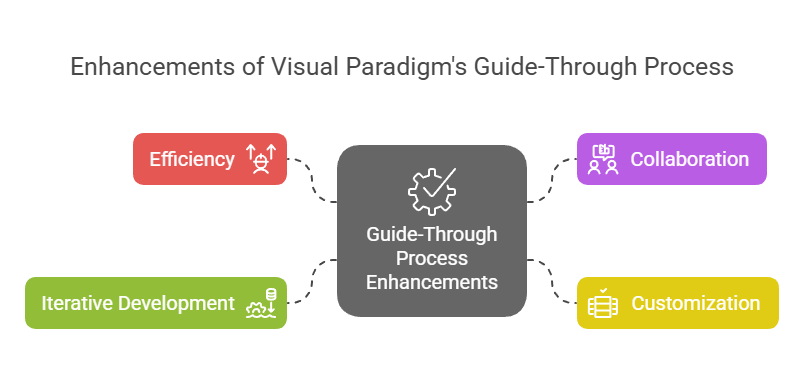
Enhancements of Visual Paradigm's Guide-Through Process: Visual Paradigm

  1. Efficiency:

    • The Guide-Through Process significantly enhances efficiency by providing clear instructions and automating tasks, allowing users to focus on strategic decisions rather than procedural details 11.
  2. Collaboration:

    • The tool facilitates collaboration among different stakeholders, including project owners, business analysts, enterprise architects, and IT professionals. This collaborative approach ensures that all parties are engaged and informed throughout the architecture development process 15.
  3. Customization:

    • Visual Paradigm’s tool allows for customization, enabling organizations to tailor the ADM process to their specific needs and goals. This flexibility ensures that the architecture development process aligns with the organization’s unique requirements 11.
  4. Iterative Development:

    • The iterative nature of the TOGAF ADM is fully supported by Visual Paradigm’s Guide-Through Process. This allows practitioners to adapt and refine their work based on evolving information needs and stakeholder feedback, ensuring that the architecture meets the changing needs of the organization 16.

Application Areas

  1. Enterprise Architecture Development:

    • The primary application area is enterprise architecture development, where the Guide-Through Process helps organizations design, plan, implement, and govern their enterprise architecture. It provides a structured approach to align business goals with IT strategies effectively 17.
  2. Digital Transformation:

    • The tool is crucial for digital transformation initiatives, where organizations seek to enhance customer experience and operational efficiency through the implementation of new technologies and processes 18.
  3. Strategic Planning:

    • Visual Paradigm’s Guide-Through Process supports strategic planning by providing a comprehensive framework for developing architecture visions, defining scope, identifying stakeholders, and creating communications plans. This ensures that the architecture development process is aligned with business goals and strategic drivers 19.
  4. Agile Methodologies:

    • The tool integrates agile methodologies and UML, providing a comprehensive solution for enterprise architecture development. This integration ensures that the architecture development process is both flexible and efficient, supporting agile practices within the organization 14.

Conclusion

Visual Paradigm’s TOGAF Guide-Through Process stands out as a comprehensive and effective tool for supporting the TOGAF ADM. Its step-by-step guidance, integration with ArchiMate, automated task management, and collaborative features make it an invaluable resource for enterprise architecture development. By leveraging this tool, organizations can enhance efficiency, collaboration, customization, and iterative development, ultimately achieving their enterprise architecture goals and driving business value and transformation.