Mastering Visual Paradigm OpenDocs: A Comprehensive Guide

Mastering Visual Paradigm OpenDocs: A Comprehensive Guide

Visual Paradigm OpenDocs represents a shift from static documentation to a dynamic knowledge ecosystem. By merging professional-grade modeling (UML, BPMN, SysML) with a modern Markdown/WYSIWYG editor, it eliminates the “documentation lag” that occurs when diagrams and text live in separate tools.

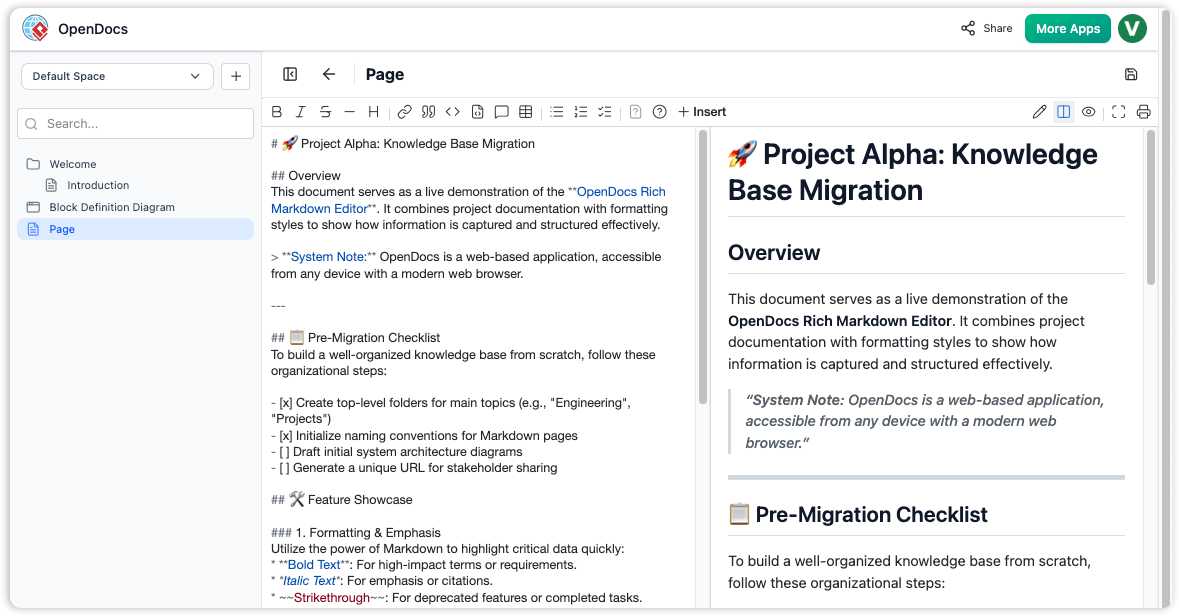
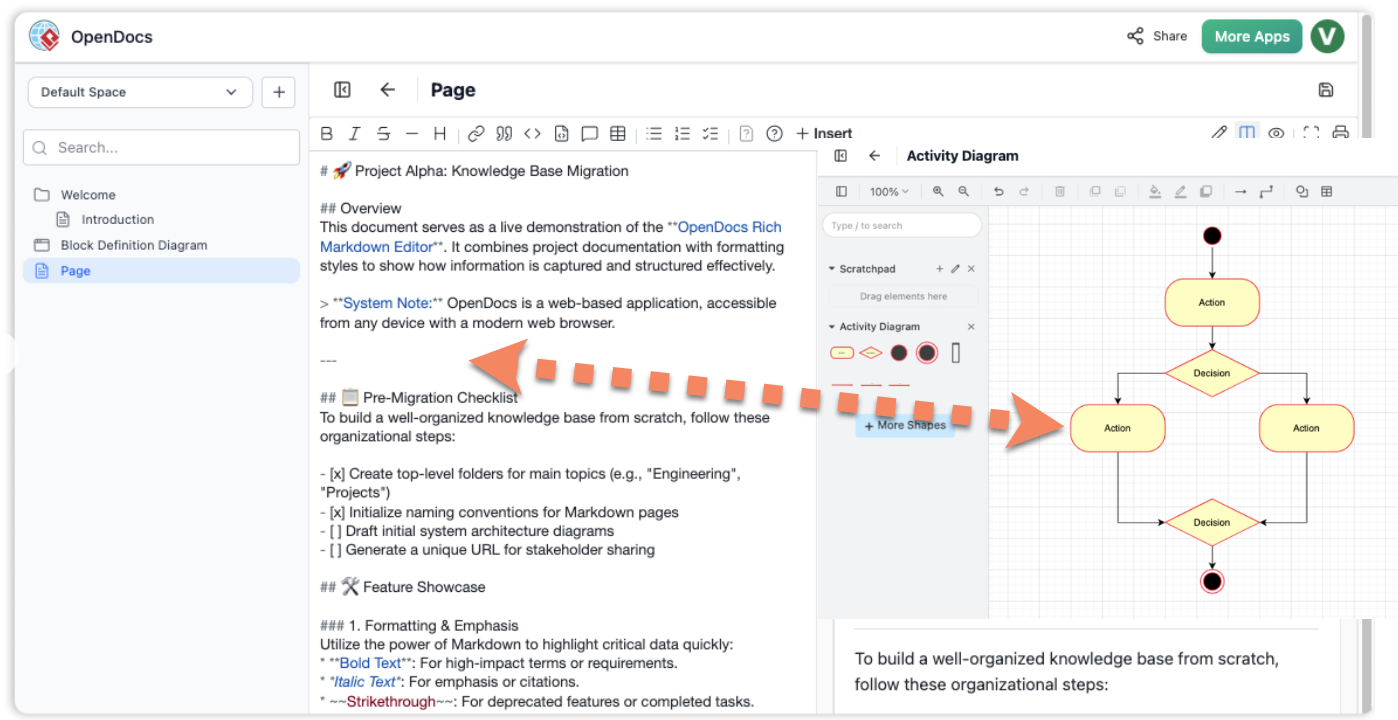
OpenDocs Markdown editor interface showing a split-pane view with a technical document in raw Markdown on the left and a live formatted preview on the right.


1. Setting Up Your Knowledge Workspace

The foundation of OpenDocs is the Space. Think of a Space as a centralized “Single Source of Truth” for a specific project or department.

  • Hierarchical Organization: Use the Knowledge Tree to create nested folders. This allows you to mirror your project’s architecture (e.g., Project X > Requirements > Technical Specs > API Design).

  • Real-time Collaboration: Invite team members to a Space to co-edit documents and diagrams simultaneously.

  • Navigation: Use the drag-and-drop interface in the tree view to restructure your knowledge base as the project evolves.


2. The Hybrid Editing Experience

OpenDocs caters to both technical and non-technical users through its dual-mode editor:

  • Markdown for Power Users: Use standard Markdown syntax for rapid headers, lists, and code blocks.

  • WYSIWYG for Visual Comfort: Use the floating toolbar for bolding, italics, and table insertion if you prefer a traditional word-processing experience.

  • Live Preview: See exactly how your document will look to stakeholders as you type, ensuring formatting is consistent.


3. Deep Diagram Integration

The standout feature of OpenDocs is the ability to treat complex diagrams as first-class citizens within your text.

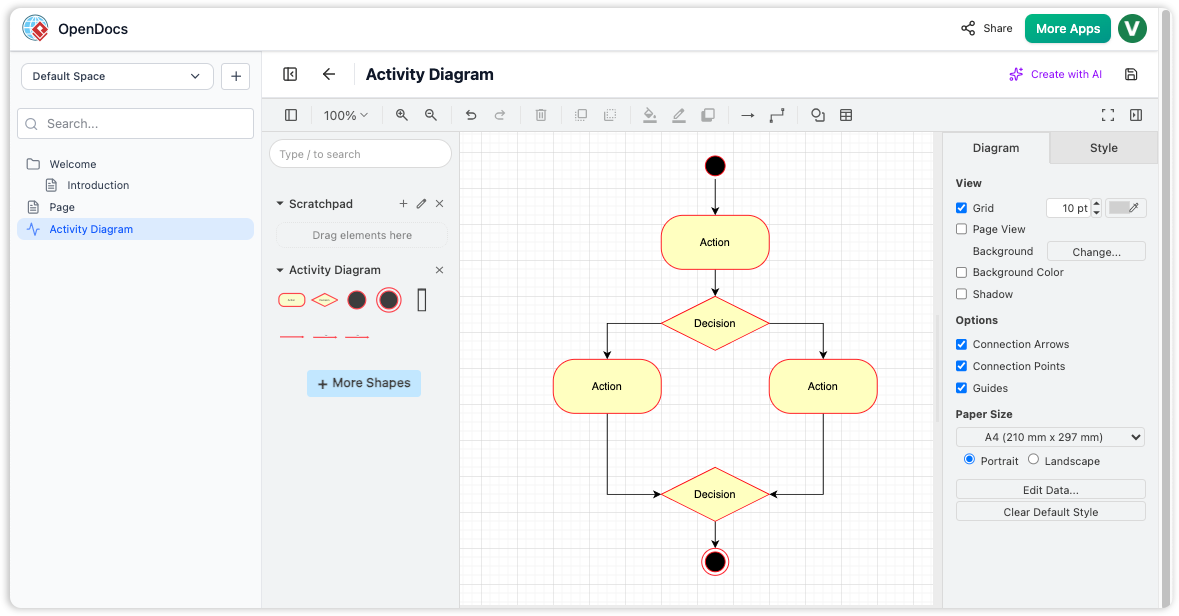
OpenDocs interface showing the integrated diagram editor with a sample Activity Diagram featuring actions, decisions, and flow connectors.

  • Embedded Modeling: Instead of exporting a PNG and pasting it, you can embed over 200 diagram types (UML, BPMN, ArchiMate, ERDs) directly.

  • In-place Editing: Double-click any diagram within a document to launch the editor. Changes saved in the diagram tool reflect instantly in the document.

  • Specialized Components: Beyond standard modeling, use built-in tools for Mind Mapping, Org Charts, and UML Profiles to extend documentation into business and organizational domains.


4. Leveraging the AI Assistant

OpenDocs uses Generative AI to accelerate the “blank page” phase of documentation.

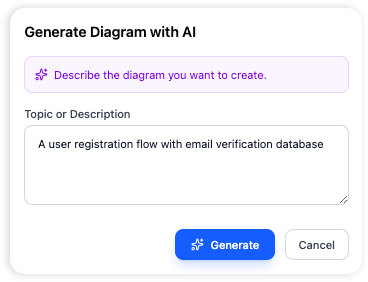
Opendocs AI generated diagram

  • Text-to-Diagram: Use prompts like "Create a sequence diagram for a multi-factor authentication flow" to generate a baseline model that you can then manually refine.

  • Mastering Visual Paradigm OpenDocs: A Comprehensive Guide
  • Content Generation: Highlight a section of text and ask the AI to Summarize, Simplify, or Expand.

  • Smart Search: Use the AI to query your existing knowledge base. Instead of searching for keywords, ask, "How does our system handle database failovers?" and get an answer based on your uploaded specs.


5. Sharing and Publishing

Sharing your findings shouldn’t require your stakeholders to have a license or an account.

  • One-Click Web Links: Generate a secure, read-only URL for a document or an entire Space.

  • Interactive Viewers: When shared via a link, diagrams remain interactive (zoom/pan), allowing viewers to inspect complex models without losing clarity.

  • Version Control: Track changes over time to see how your architecture or business processes have shifted.


Quick Start Tips

Feature Best For…
Mind Maps Brainstorming and initial project discovery.
BPMN/Flowcharts Mapping out business processes and operational workflows.
UML/SysML Deep-dive technical specifications and system architecture.
AI Drafts Rapidly creating User Manuals or Onboarding guides.

Would you like me to create a specific walkthrough for integrating C4 models or TOGAF ADM workflows within the OpenDocs environment?

📘 Complete Tutorial: How to Create a UML Process Diagram in OpenDocs

In modern software and systems design, visualizing processes is essential for clarity, collaboration, and documentation. OpenDocs, powered by Visual Paradigm, offers a powerful, AI-enhanced environment to model workflows using UML (Unified Modeling Language). This tutorial walks you through creating a UML Activity Diagram—the ideal choice for modeling business processes, system workflows, and control flows—step by step.


✅ Why Use UML Activity Diagrams in OpenDocs?

UML Activity Diagrams are specifically designed to represent:

📘 Complete Tutorial: How to Create a UML Process Diagram in OpenDocs

  • The flow of control in a system.

  • Sequential and concurrent actions.

  • Decision pointsloops, and parallel branches.

  • Real-world business processes such as customer onboarding, order fulfillment, or refund processing.

With OpenDocs, you can build these diagrams manually or leverage AI-powered generation to accelerate your workflow.


🛠️ Step-by-Step Guide: Creating a UML Activity Diagram in OpenDocs

Follow these steps to create a professional, interactive UML process diagram in OpenDocs.


Step 1: Open or Create a New Page

  1. Launch the OpenDocs application.

  2. Navigate to your project or click “New Page” from the sidebar.

  3. Give your page a descriptive name, such as “Customer Refund Process”.

💡 Tip: Use clear, descriptive titles to improve document navigation and team collaboration.


Step 2: Access the Diagram Editor

  1. In the top navigation bar, click the Insert button.

  2. Select the Diagrams tab from the dropdown menu.

  3. Choose Activity Diagram from the list of UML diagram types.

✅ This opens the Diagram Editor, where you can begin building your process model.


Step 3: Generate with AI (Optional but Powerful)

Use the AI-powered diagram generator to create a draft instantly based on your description.

  1. Click Create with AI in the top-right corner of the editor.

  2. Enter a clear prompt such as:

    “Create an activity diagram for a customer refund process, including steps like refund request, verification, approval, and refund issuance.”

  3. Click Generate.

The AI will:

  • Analyze your prompt.

  • Draft a structured diagram with actions, decisions, and flow.

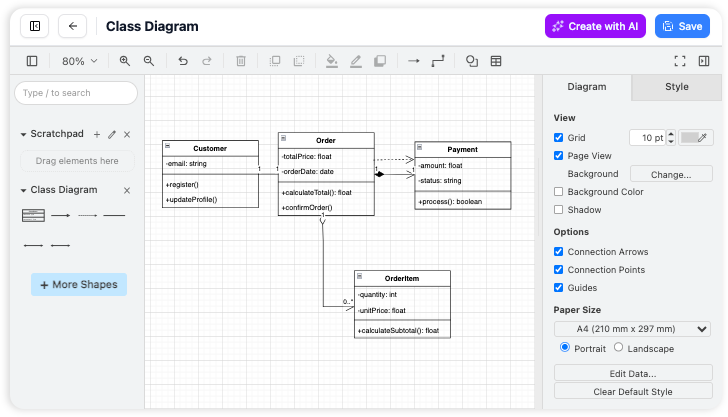
    Opendocs AI generated diagram

  • Suggest appropriate UML symbols and layout.

🚀 This saves hours of manual work and provides a strong starting point for refinement.


Step 4: Manual Construction & Refinement

Even with AI assistance, manual editing ensures accuracy and alignment with your needs.

Add UML Symbols from the Palette

Drag and drop the following standard UML elements onto the canvas:

Symbol Purpose
Start Node (Circle with a dot) Marks the beginning of the process.
Action (Rounded Rectangle) Represents a step or task (e.g., “Receive Refund Request”).
Decision (Diamond) Indicates a branching point (e.g., “Is request valid?”).
Merge (Diamond) Combines multiple flows back into one.
End Node (Circle with a thick border) Marks the end of the process.

Connect the Steps

  • Use the Connector Tool (usually a line with an arrow) to link symbols.

  • Arrows show the flow of control from one action to the next.

  • For branching logic, draw arrows from the Decision diamond to multiple outcomes (e.g., “Yes” → “Approve”, “No” → “Reject”).

Edit and Customize Content

  • Double-click any shape to:

    • Rename the action (e.g., change “Action1” to “Verify Customer ID”).

    • Add descriptions or notes.

  • Use the Properties Panel to adjust colors, fonts, or add metadata.

✏️ Best Practice: Keep labels concise and action-oriented. Avoid vague terms like “Process Step 1.”


Step 5: Save and Embed the Diagram

Once your diagram is complete:

  1. Click Save to preserve your work.

  2. Click Close to exit the editor.

  3. The diagram is automatically embedded into your OpenDocs page as an interactive component.

🔗 Interactive Features:

  • Hover over elements to see tooltips.

  • Click to edit directly in the document.

  • Export to PNG, PDF, or SVG for sharing.


📊 Common UML Diagrams for Modeling Processes

While Activity Diagrams are best for general workflows, here are other UML diagrams you may use depending on your goal:

Diagram Type Use Case
Activity Diagram Visualize step-by-step business processes (e.g., order processing, user registration).
Sequence Diagram Show object interactions over time (e.g., how a user, server, and database communicate during login).
State Machine Diagram Model state transitions of an object (e.g., order status: Pending → Shipped → Delivered).

📌 Pro Tip: Use Activity Diagrams for high-level process flow; use Sequence Diagrams for detailed system interactions.


💬 Need Help with a Custom AI Prompt?

Let me help you generate a perfect AI prompt for your specific process. Just reply with:

“I need an activity diagram for [your process], including [key steps or decisions].”

For example:

“I need an activity diagram for a user login process, including steps like entering credentials, validating the password, checking account status, and redirecting to the dashboard or showing an error.”

I’ll provide a ready-to-use prompt for OpenDocs’ AI generator.


📚 Reference List (Markdown Format)

Comprehensive Guide to UML Activity Diagrams: This guide explains how activity diagrams model control flow and object states in systems.

Introduction to UML: Unified Modeling Language: A foundational overview of UML concepts, including its various diagram types and use cases.

AI-Powered Diagram Generation in OpenDocs: Details how OpenDocs uses AI to generate diagrams instantly, reducing design time significantly.

OpenDocs Features Overview: Official documentation highlighting OpenDocs’ capabilities, including AI-driven modeling and interactive diagrams.

Revolutionizing Domain-Specific Modeling with AI in OpenDocs: Explores how AI enhances domain-specific modeling using UML in OpenDocs.

February–March 2026 Update: AI-Powered Visual Knowledge Engine: Covers new features in OpenDocs, including AI enhancements for UML and documentation.

AI Profile Diagram Generation in OpenDocs: Announces support for AI-generated UML profile diagrams in OpenDocs.

AI Component Diagram Generator Update: Highlights recent AI improvements for component diagrams in OpenDocs.

How to Model MVC with UML Sequence Diagrams: A practical guide on using sequence diagrams to model MVC architecture.

Creating UML Activity Diagrams in Practice: Demonstrates real-world use of activity diagrams in system design.


✅ Final Tips for Success

  • Start simple: Begin with a high-level view, then add detail.

  • Use consistent naming: Keep actions and decisions clear and standardized.

  • Leverage AI wisely: Use AI for ideation and structure, then refine manually.

  • Collaborate: Share your OpenDocs page with team members for feedback.

  • Document assumptions: Add notes to explain complex logic or business rules.


🎯 Conclusion

Creating a UML process diagram in OpenDocs is fast, intuitive, and highly effective—especially with the help of AI-powered generation. Whether you’re documenting a customer refund flow, a user authentication process, or a complex business workflow, OpenDocs gives you the tools to visualize, refine, and share your models with confidence.

🌟 Now that you’ve mastered the process—go build your first diagram and transform your ideas into visual reality!

OpenDocs by Visual Paradigm: A Comprehensive Guide to the AI-Powered Visual Knowledge Engine

Overview

OpenDocs is a web-based, AI-powered knowledge management platform and “Visual Knowledge Engine” developed by Visual Paradigm. It seamlessly integrates rich text documentation with interactive diagramming in a single, collaborative workspace. Designed for modern engineering, project, and knowledge teams, OpenDocs acts as a “living library”—a dynamic, evolving repository of organizational knowledge that combines the power of structured writing with visual thinking.
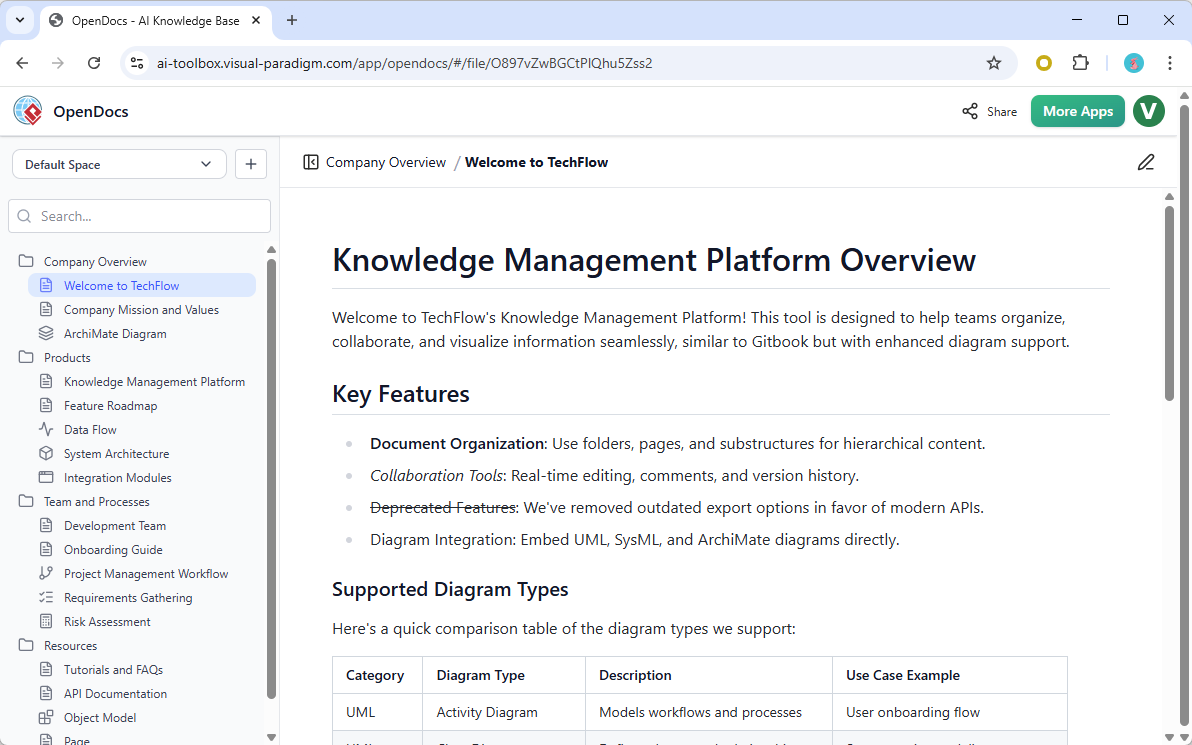
Opendocs

By merging documentation and modeling into one unified environment, OpenDocs eliminates the friction between text and diagrams, enabling teams to create, organize, share, and evolve their knowledge with unprecedented efficiency.

✅ Note: AI-generated content may contain inaccuracies. Always verify outputs before finalizing or sharing.


Core Purpose of OpenDocs

The primary mission of OpenDocs is to break down silos between documentation and modeling—two traditionally separate domains in technical and business workflows. Instead of toggling between tools like Confluence, Draw.io, or Word, teams can now work in a single, intelligent workspace.

Key Objectives:

  • Unify text and diagrams: Create and edit both Markdown/WYSIWYG content and visual models (UML, ERD, Mind Maps, etc.) in the same document.

  • Reduce tool-switching fatigue: Eliminate context switching by providing all necessary features within one interface.

  • Accelerate knowledge creation: Use AI to generate content and diagrams from plain language.

  • Enable real-time collaboration: Work together on documents and models with teammates across time zones.

  • Build a living knowledge base: Maintain up-to-date, version-controlled, and searchable documentation.


Key Features & Capabilities

✅ All-in-One Knowledge Hub

OpenDocs combines:

  • Rich text editing (Markdown & WYSIWYG modes)

  • Integrated diagram editor (supports UML, ERD, Flowcharts, Mind Maps, VSM, and more)

  • Inline diagramming: Insert and edit diagrams directly within text—no need to export or switch contexts.

📌 Example: Write a section on “User Authentication Flow,” then insert a UML sequence diagram directly below—edit it in real time without leaving the document.


✅ AI-Driven Content Creation

Leverage generative AI to:

  • Convert natural language into structured documents.

  • Generate diagrams from descriptions (e.g., “Create a flowchart for user login process”).

  • Auto-summarize long documents or meeting notes.

  • Suggest improvements to existing content using AI feedback.

💡 Use Case: Type “Design a mind map of project deliverables for Q3” → Instantly generate a visual mind map with AI-organized branches.


✅ Structured Knowledge Management

Organize information hierarchically using:

  • Nested folders and subfolders

  • Tag-based categorization

  • Searchable content indexing

  • Version history for every document

This structure supports scalable knowledge bases, making it easy to navigate complex projects or enterprise-wide documentation.


✅ Visual Thinking & Inline Diagramming

OpenDocs promotes visual thinking—a cognitive approach where ideas are better understood through diagrams.

Supports:

  • UML Diagrams: Class, Sequence, Use Case, Activity, Component, etc.

  • ERD (Entity-Relationship Diagrams): Ideal for database design and schema documentation.

  • Mind Maps: For brainstorming, planning, and knowledge structuring.

  • Flowcharts & Process Maps: Visualize business logic, workflows, and system processes.

  • Value Stream Mapping (VSM): For Lean and Agile teams.

All diagrams are editable inline, meaning you can tweak them without leaving the document.


✅ Effortless Collaboration & Sharing

Teams can collaborate in real time with:

  • Live co-editing of documents and diagrams

  • Real-time comments and mentions

  • Secure, shareable links (read-only or editable)

  • Permission controls for different user roles

🔐 Security Note: All documents are stored securely in the cloud with enterprise-grade encryption and access controls.


✅ Cloud-Based Accessibility

OpenDocs is:

  • Fully web-based – accessible from any modern browser (Chrome, Firefox, Safari, Edge)

  • No installation required – no desktop software or downloads

  • Cross-platform – works on Windows, macOS, Linux, tablets, and mobile devices

  • Always up to date – automatic updates ensure you’re using the latest features


Target Users & Use Cases

OpenDocs is designed for a wide range of professionals who need to create, manage, and visualize knowledge effectively.

User Group How They Use OpenDocs
Development Teams Document APIs, system architectures, technical specs, and code design patterns with embedded diagrams.
Project Managers Centralize project plans, roadmaps, status reports, and stakeholder communications.
System Analysts & Architects Model business processes (TOGAF), data flows, and system components using UML and ERD.
HR Departments Build organized employee handbooks, onboarding guides, and policy documentation.
Educators & Students Create study guides, lecture notes, research summaries, and visual learning aids.

🎯 Bonus: Ideal for Agile teams to maintain product backlogs, sprint plans, and user story maps in one place.


Subscription & Availability

OpenDocs is included with the following Visual Paradigm subscriptions:

  • Visual Paradigm Online (Combo Edition)

  • Visual Paradigm (Professional Edition)

🔗 Note: It is not available as a standalone product. You must have a valid subscription to access OpenDocs.

For pricing and plans, visit: https://www.visual-paradigm.com/shop/vp.jsp


Best Practices for Using OpenDocs

  1. Start with a Clear Structure: Use folders and subfolders to mirror your project or organizational hierarchy.

  2. Use AI Wisely: Generate drafts with AI, but always review and refine them for accuracy and context.

  3. Combine Text and Diagrams: Never leave diagrams isolated—always explain them with concise text.

  4. Tag Documents: Use tags (e.g., #architecture#API#onboarding) for easier searching and filtering.

  5. Enable Version Control: Regularly save changes and use the history feature to track updates.

  6. Share Securely: Use read-only links for external stakeholders; grant edit access only to trusted team members.


Why OpenDocs Stands Out

Feature Why It Matters
AI + Diagrams in One Place Reduces cognitive load and speeds up documentation cycles
No Tool Switching Increases productivity and focus
Real-Time Collaboration Enables distributed teams to work together seamlessly
Living Knowledge Base Evolves with your project, reducing outdated documentation
Visual-First Approach Aligns with how humans naturally think and communicate

Conclusion

OpenDocs redefines how teams manage knowledge in the digital age. By merging AI-driven content creationvisual thinking, and collaborative documentation, it transforms static wikis into dynamic, living knowledge ecosystems.

Whether you’re a developer documenting a microservice, a project manager tracking milestones, or a student organizing research, OpenDocs empowers you to think visually, write clearly, and collaborate effectively—all in one intelligent platform.


References

Comprehensive Guide to OpenDocs: February–March 2026 Update – The AI-Powered Visual Knowledge Engine: A detailed overview of OpenDocs’ features, AI capabilities, and use cases, with insights into the platform’s evolution through early 2026.

OpenDocs by Visual Paradigm: Revolutionizing Knowledge Management with AI and Visual Thinking: An in-depth article highlighting OpenDocs’ role in breaking down documentation silos and enabling visual collaboration across teams.

OpenDocs – AI-Powered Knowledge Platform | Visual Paradigm Updates: Official release notes detailing new features, improvements, and integrations introduced in OpenDocs.

OpenDocs by Visual Paradigm: Revolutionizing Knowledge Management with AI and Visual Thinking: A follow-up piece exploring how OpenDocs supports agile methodologies, system architecture, and team collaboration.

OpenDocs – Visual Paradigm Official Features Page: The official product page outlining core features, supported diagram types, collaboration tools, and subscription details.

Comprehensive Guide to OpenDocs: February–March 2026 Update – The AI-Powered Visual Knowledge Engine: Additional insights into AI functionality, real-world applications, and integration with other Visual Paradigm tools.

OpenDocs – Visual Paradigm Official Features Page: A second reference to the official feature documentation, reinforcing accuracy and completeness of product capabilities.

Comprehensive Guide to OpenDocs: February–March 2026 Update – The AI-Powered Visual Knowledge Engine: Repeated for emphasis, this source provides consistent updates on platform enhancements and user adoption trends.


📌 Final Reminder: While OpenDocs leverages powerful AI to accelerate knowledge creation, always validate AI-generated content for accuracy, context, and completeness—especially in technical or legal documentation.


📘 Ready to get started?
Visit https://ai.visual-paradigm.com/tool/opendocs to explore OpenDocs and begin building your visual knowledge base today.