Mastering Visual Paradigm’s AI-Powered Textual Analysis: A Comprehensive Guide to Rapid UML Modeling (2025–2026)

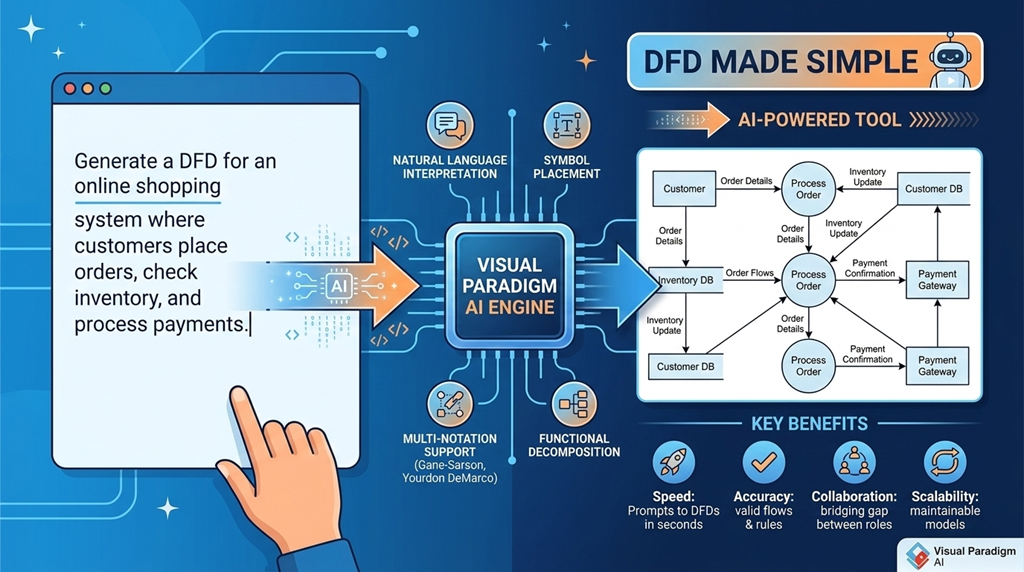
In today’s fast-paced software development landscape, speed, accuracy, and clarity are paramount. Traditional UML modeling can be time-consuming—especially during early design phases—requiring hours of analysis, brainstorming, and iteration. Enter Visual Paradigm’s AI-Powered Textual Analysis Tool, a revolutionary feature that transforms a high-level idea into a structured, AI-generated UML Class Diagram in minutes.

This comprehensive guide walks you through every step of using this powerful AI-driven tool, based on the latest video tutorial (circa September 2025) and official Visual Paradigm documentation. Whether you’re a software engineer, system designer, business analyst, or student learning UML, this tool streamlines your workflow and accelerates project kickoff.


🔧 Overview: What Is AI-Powered Textual Analysis?

AI-Powered Textual Analysis is an intelligent feature within Visual Paradigm that leverages advanced natural language processing (NLP) and large language models (LLMs) to analyze a plain-text problem description and automatically generate:

  • Candidate UML classes

  • Class attributes and operations

  • Relationships between classes (e.g., association, inheritance, aggregation)

  • A fully editable UML Class Diagram

This capability allows developers and analysts to jump from idea to visual model without writing a single line of code—ideal for rapid prototyping, requirements analysis, and educational use.

✅ Ideal for:

  • Early-stage domain modeling

  • Agile sprint planning

  • Teaching UML to beginners

  • Reverse engineering from documentation

  • Integrating AI into SDLC workflows


📌 Prerequisites: Getting Started

Before diving in, ensure you have the following:

Requirement Details
Software Visual Paradigm Desktop (Professional or Enterprise edition recommended)
Download Free 30-day trial: https://www.visual-paradigm.com/download
Internet Connection Required (AI processing runs on cloud servers)
Access Path Tools > Apps → Select Software Development category → Find Textual Analysis
Optional Integration Visual Paradigm Online (for collaboration, export, and advanced editing)

💡 Pro Tip: Use the cloud integration to save your work and continue editing in the browser-based environment.


🔄 Step-by-Step Workflow: From Idea to Class Diagram

Follow this structured, iterative process to generate accurate and meaningful UML models using AI.


Step 1: Launch the AI Textual Analysis Tool

  1. Open Visual Paradigm Desktop.

  2. Navigate to:
    Tools > Apps → Select Software Development tab.

  3. Scroll to page 2 (or use the search bar) to locate Textual Analysis (AI-powered).

  4. Click Start Now.

🖥️ The interface opens with a clean, intuitive layout:

  • Left panel: Input fields and controls

  • Right panel: Real-time results and visual feedback


Step 2: Generate or Refine the Problem Description

The AI begins by generating a detailed problem description based on your initial prompt.

🔹 Enter a Domain Prompt

Input a concise name or goal:

  • "Online Shopping Platform"

  • "Student Registration System"

  • "Hospital Patient Management"

🔹 Click: Generate Problem Description

The AI instantly produces a paragraph (100–150 words) summarizing the system’s purpose, stakeholders, core features, and constraints.

✅ Example Output:
“The Online Shopping Platform enables customers to browse products, add items to a shopping cart, and complete purchases via secure payment gateways. Administrators manage inventory, view order history, and generate sales reports. Each customer has a profile with personal details and shipping address. Products are categorized, with attributes like name, price, stock quantity, and description. Orders are linked to customers and contain multiple line items. The system must support user authentication, role-based access control, and an analytics dashboard for administrators.”

✅ Critical Best Practice: Edit the Generated Text

The AI-generated description is a starting point, not a final version.

🔧 Enhance it with domain-specific details:

  • Add: “The system must include an analytics dashboard for administrators to view usage statistics and sales trends.”

  • Add: “Users must be able to reset passwords via email verification.”

  • Add: “Orders are categorized into pending, shipped, and delivered statuses.”

✅ Why It Matters: Small edits significantly improve the quality of class extraction, attribute suggestions, and relationship detection.


Step 3: Identify Candidate Classes

Click Identify Candidate Classes.

The AI scans the text and extracts potential domain entities (nouns) and concepts.

📋 Output: List of Candidate Classes

Each entry includes:

  • Class Name (e.g., CustomerProductOrder)

  • Reason for Selection (e.g., “appears 5 times in the description”, “central to the domain”)

  • Brief Description (e.g., “Represents a user who buys products”)

🧠 Example:

  • Customer: “Frequent noun; represents a user of the system”

  • PaymentGateway: “Mentioned in context of transaction processing”

  • Inventory: “Key component for managing product availability”

✅ Review & Refine

  • Deselect irrelevant entries (e.g., generic terms like “system”, “data”).

  • Add missing ones manually (e.g., ShoppingCartOrderStatus).

🛠️ Tip: Use this step to correct AI hallucinations—if it missed a key entity, add it now.


Step 4: Identify Class Details (Attributes & Operations)

Click Identify Class Details.

For each class, the AI proposes:

  • Attributes (data fields): e.g., name: Stringemail: Stringprice: Double

  • Operations (methods): e.g., placeOrder()calculateTotal()updateStock()

📊 Example Output for Order:

Attribute Type Description
orderId String Unique identifier
orderDate Date Date when order was placed
status OrderStatus Current state of the order
Operation Parameters Returns
addLineItem(item: Item, quantity: int) Item, int void
calculateTotal() Double
updateStatus(newStatus: OrderStatus) OrderStatus void

✅ Review Tips:

  • Confirm data types (e.g., use LocalDateTime instead of Date for precision).

  • Adjust method names to match coding conventions (e.g., getTotal() vs calculateTotal()).

  • Add missing operations like cancelOrder() or applyDiscount().


Step 5: Identify Class Relationships

Click Identify Class Relationships.

The AI analyzes interactions, dependencies, and ownership patterns in the text and proposes relationships such as:

Relationship Type Description
Association A general link between two classes (e.g., Customer places Order)
Aggregation “Has-a” relationship (e.g., ShoppingCart contains Product)
Composition Stronger “owns” relationship (e.g., Order contains LineItem)
Generalization (Inheritance) Admin extends User
Dependency One class uses another (e.g., PaymentService depends on PaymentGateway)

📋 Example Output:

Source Target Type Explanation
Customer Order Association “Customer places multiple orders”
Order LineItem Composition “Order contains line items”
Admin User Generalization “Admin is a type of user”
PaymentService PaymentGateway Dependency “Uses gateway to process payments”

✅ Verify Accuracy:

  • Ensure composition is used for exclusive ownership.

  • Use inheritance only when is-a relationships exist.

  • Replace weak associations with more specific roles (e.g., Order → Customer via placedBy).


Step 6: Generate the Class Diagram

Click Generate Diagram.

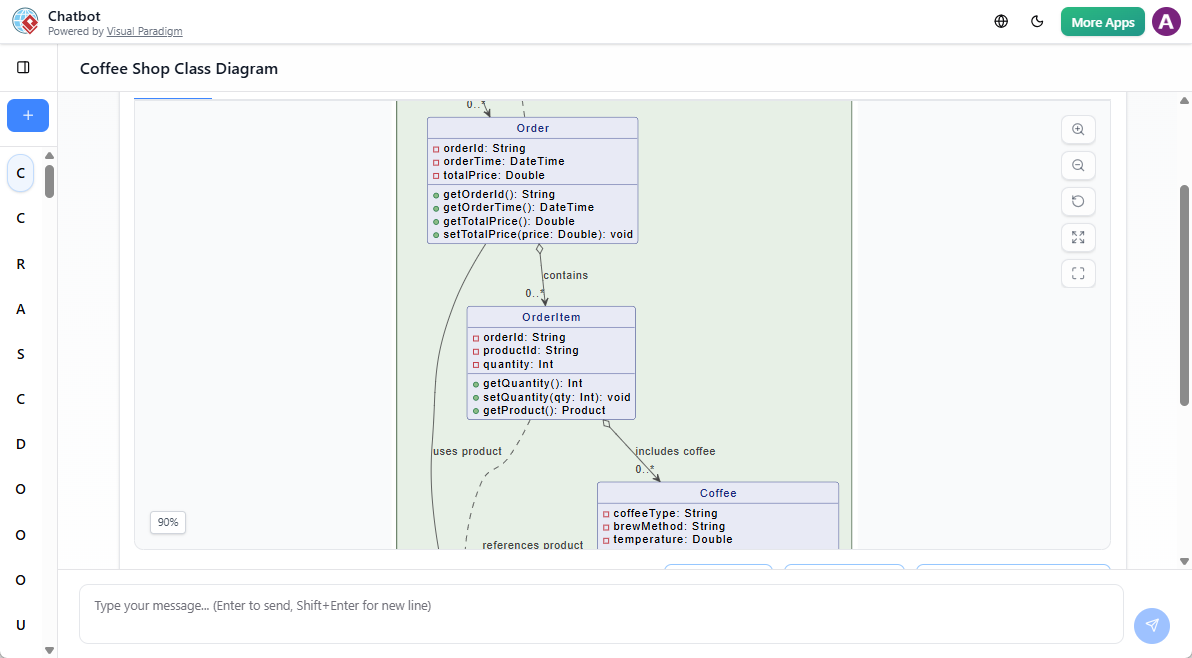
The tool assembles all elements into a clean, readable UML Class Diagram.

✅ Features of the Generated Diagram:

  • Auto-layout: Intelligent placement of classes and relationships

  • Expandable Details: Click any class to view attributes and operations

  • Editable: All elements can be modified directly in the editor

  • Color-coded: Differentiates between entities, interfaces, and abstract classes

🎯 You now have a fully functional, AI-generated class diagram ready for:

  • Further refinement

  • Code generation

  • Integration with other diagrams (e.g., Use Case, Sequence)

  • Documentation and team sharing


Step 7: Iterate and Refine (Recommended)

One of the most powerful aspects of this tool is its iterative design capability.

🔁 How to Iterate:

  1. Go back to the Problem Description tab.

  2. Modify the text:

    • Add: “The system must support user roles: Customer, Admin, and Support Agent.”

    • Add: “Customers can rate products after purchase.”

  3. Re-run:

    • Identify Candidate Classes

    • Identify Class Details

    • Identify Class Relationships

    • Generate Diagram

🔄 Result: The diagram updates dynamically, reflecting new entities (UserRoleReview) and relationships (Customer → ReviewAdmin → SupportAgent).

🎯 Use Case: You’re designing a learning management system and realize you need to model courses, enrollments, and grades—just edit the prompt and regenerate.


Step 8: Export & Further Edit in Visual Paradigm Online

To unlock full editing power and collaboration:

📤 Export to Visual Paradigm Online

  1. In the generated diagram, click the cloud icon (top-left corner).

  2. Choose Save to Visual Paradigm Online.

  3. Log in or create an account if needed.

  4. The diagram is saved to your online workspace.

🔄 Import Back to Desktop

  1. Return to Visual Paradigm Desktop.

  2. Go to: Team > Import from Web Diagram

  3. Select your saved diagram from the list.

  4. Click Import.

✅ Now you can:

  • Use advanced layout tools

  • Add notes, constraints, and stereotypes

  • Generate code (Java, C#, Python, etc.)

  • Reverse engineer from existing code

  • Integrate with Use Case, Sequence, or Component diagrams


🌟 Benefits & Advantages

Benefit Explanation
⚡ Speed From idea to class diagram in under 5 minutes
🤖 Intelligence AI explains why a class or relationship was selected
🔁 Iterative Design Easily refine based on feedback or new requirements
🎓 Learning Aid Great for students to understand UML structure and domain modeling
🔄 Seamless Integration Works with other VP AI tools (e.g., AI Use Case Generator, AI Chatbot)
📊 Explainability Transparent reasoning behind AI choices improves trust

🛠️ Best Practices & Pro Tips

  1. Start Simple: Begin with a clear, focused prompt like "ATM System" or "Hotel Booking App".

  2. Be Specific: Add key verbs and nouns (e.g., “withdraw money”, “reserve a room”).

  3. Use Realistic Scenarios: Include roles, workflows, and constraints.

  4. Review Every Output: AI is assistive—never assume correctness.

  5. Combine with Other AI Tools:

  6. Save Iterations: Export each version to track evolution of your model.

  7. Use Sample Prompts:

    • "E-commerce Platform with User Roles, Shopping Cart, and Payment Processing"

    • "University Course Registration System with Timetables and Grades"

    • "Fitness Tracker App for Monitoring Workouts and Health Metrics"


📘 Use Case Example: Building a Library Management System

Let’s walk through a quick example.

📌 Prompt:

“Library Management System”

📝 Enhanced Description:

“The Library Management System allows librarians to manage books, borrowers, and loans. Each book has a title, ISBN, author, and availability status. Borrowers are registered users who can borrow up to 5 books at a time. Loans are tracked with due dates and late fees. The system must support searching by title, author, or keyword. Librarians can add, update, or remove books. A borrower can return a book, and the system calculates late fees if overdue.”

📌 AI Output Highlights:

  • ClassesBookBorrowerLoanLibrarianSearchEngine

  • AttributesdueDate: DateisOverdue: BooleanlateFee: Double

  • OperationscalculateLateFee()checkAvailability()searchByKeyword()

  • Relationships:

    • Borrower → Loan (association)

    • Book → Loan (composition)

    • Librarian → Book (manages)

✅ Result: A complete, production-ready class diagram in minutes.


🌐 Additional Resources

Resource Link
Official AI Tools Hub https://ai.visual-paradigm.com
Textual Analysis Feature Page https://www.visual-paradigm.com/features/ai-textual-analysis
Video Tutorial (YouTube) VisualParadigm YouTube Channel
Community Forum & Support https://forum.visual-paradigm.com
Free Learning Modules https://learn.visual-paradigm.com

✅ Conclusion: Empower Your Design with AI

Visual Paradigm’s AI-Powered Textual Analysis Tool is not just a novelty—it’s a game-changer for software design.

By turning plain-language descriptions into structured UML models, it:

  • Saves hours of manual effort

  • Reduces modeling errors

  • Accelerates collaboration

  • Demystifies UML for beginners

Whether you’re a solo developer prototyping a startup idea, a business analyst capturing requirements, or a professor teaching software engineering, this tool empowers you to think faster, model smarter, and build better.

🚀 Start today: Download the 30-day free trial and turn your next idea into a UML diagram in minutes.

प्रकाशित श्रेणिया AI, AI Chatbot

Visual Paradigm AI Chatbot: A Professional Guide to AI-Powered Visual Modeling

Overview

The Visual Paradigm AI Chatbot is an AI-driven visual modeling assistant developed by Visual Paradigm, a leading provider of UML, enterprise architecture, and diagramming solutions. Designed specifically for visual modeling workflows, this intelligent tool excels at generating, refining, explaining, and analyzing diagrams—particularly UML diagrams (e.g., Sequence, Class, Use Case, Activity, State Machine, Component, Deployment), as well as other industry-standard models such as ArchiMateSysMLC4 ModelMind MapsSWOT/PESTLE frameworks, and more.

Unlike general-purpose AI assistants (e.g., ChatGPT), the Visual Paradigm AI Chatbot is purpose-built for diagram-centric design and documentation, with deep expertise in:

  • UML notation and semantics

  • Interaction fragments (altoptloopref)

  • Lifelines, message flows, activation bars

  • Conditional logic and error handling

It transforms natural language descriptions into clean, accurate, and professionally rendered diagrams in seconds, supporting iterative refinement through conversational feedback.


✅ Key Features

Feature Description
Instant Diagram Generation Describe a business process or system interaction in plain English → receive a fully rendered UML diagram within seconds.
Conversational Refinement Iteratively improve diagrams via follow-up prompts: add branches, rename participants, adjust logic, or restructure layout—no need to restart.
Explain & Understand Ask “Explain this diagram” → receive a clear, step-by-step breakdown of flows, messages, decision points, and control logic.
Multi-Diagram Support Fully supports: Sequence, Class, Use Case, Activity, State, Communication, Object, Package, Deployment, Component, and more.
Smart Error & Flow Handling Automatically applies altoptloop, and ref fragments to represent success paths, exceptions, retries, and validations.
Seamless Integration with Visual Paradigm Export or import diagrams directly into Visual Paradigm Online or Desktop for advanced editing, collaboration, versioning, and documentation.
PlantUML Source View Toggle to view or edit the underlying PlantUML code—ideal for developers, version control, and automation.
Multi-Language Support Accepts prompts and generates diagrams in multiple languages (English, Chinese, Spanish, French, German, Japanese, Korean, etc.).

🛠️ Step-by-Step Guide: How to Use the Visual Paradigm AI Chatbot

1. Access the Chatbot

✅ No login needed for basic use. Sign-in enables saving chats and exporting to your workspace.


2. Start a New or Continue an Existing Chat

  • Click + New Chat to begin fresh.

  • Or continue from an existing conversation for ongoing modeling tasks.

The interface includes:

  • Chat history (for context retention)

  • Diagram preview (rendered in real-time)

  • TabsDiagram | PlantUML Source

  • Zoom controls and export options


3. Generate a Diagram (Core Prompt)

Enter a clear, descriptive natural language prompt. Examples that work best:

Visual Paradigm AI Chatbot: A Professional Guide to AI-Powered Visual Modeling

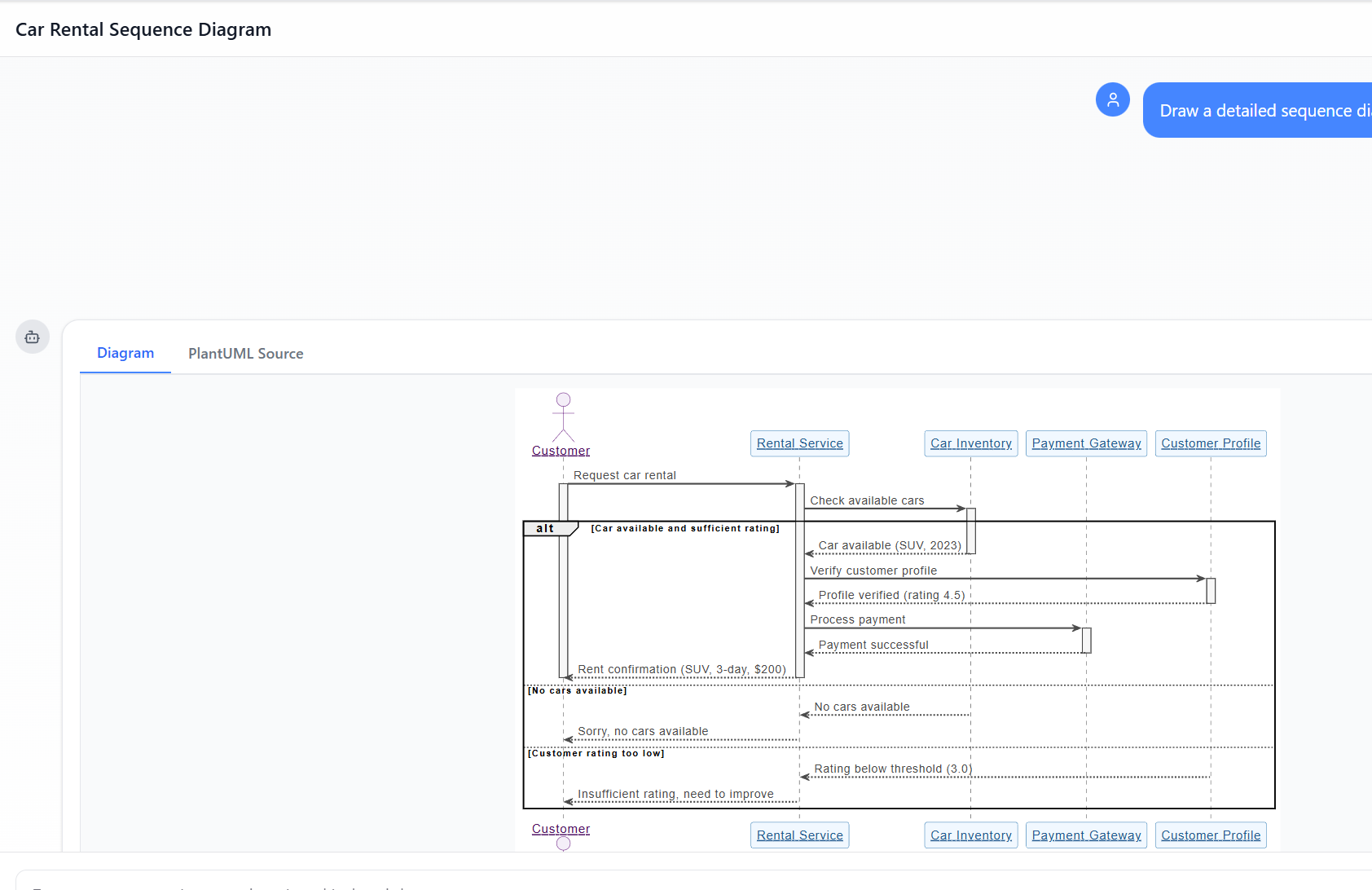
📌 “Draw a detailed sequence diagram for a car rental process involving Customer, Rental Service, Car Inventory, Payment Gateway, and Customer Profile.”

📌 “Generate a UML sequence diagram for online flight booking: user selects flight → checks seat availability → proceeds to payment → confirms or fails.”

📌 “Create a sequence diagram: user places order → shopping cart validates items → order service checks inventory → payment gateway processes charge → confirmation sent.”

💡 Tip: Be specific about participants, message order, conditions, and outcomes.

👉 Result: The AI generates a fully formatted diagram in 5–15 seconds, complete with:

  • Proper lifelines

  • Solid lines for synchronous messages

  • Dotted lines for return messages

  • Activation bars for active processing

  • altopt, and loop fragments for branching logic

🔍 Example Output: Your car rental diagram includes conditional branches for:

  • Success (car available + rating ≥ 3.0)

  • No cars available

  • Low rating (< 3.0)
    All handled using alt fragments — demonstrating intelligent error and flow management.


4. Refine Iteratively (Conversational Power)

Use follow-up prompts to evolve your diagram:

Prompt Effect
“Add an alternative path when payment is declined.” AI adds a new alt branch with error message and retry option.
“Include model year and color in the car confirmation message.” Updates message text dynamically.
“Change the rating threshold from 3.0 to 4.0.” Adjusts condition in alt fragment.
“Add a loop for up to 3 attempts to select a car.” Introduces loop fragment around selection process.
“Explain the ‘Customer rating too low’ branch.” Returns a detailed explanation of the logic and impact.

✅ No re-generation needed—changes are applied instantly in context.


5. Analyze & Explain Diagrams

Use these prompts to deepen understanding:

  • "Explain this sequence diagram step by step."

  • "What does the 'alt' fragment represent here?"

  • "Summarize the success path from start to confirmation."

  • "Identify all error conditions and how they’re handled."

This feature is especially valuable for:

  • Students learning UML

  • Teams reviewing system interactions

  • Documentation and onboarding


6. Export & Integrate into Projects

Once satisfied, export or integrate your diagram:

Option Use Case
Export as PNG/SVG/PDF For reports, presentations, or sharing.
View PlantUML Source Copy code for version control, embedding in Markdown/docs, or reuse in other tools.
Import to Visual Paradigm Fully edit in the desktop or online IDE—add constraints, stereotypes, links to other diagrams, or generate code.

🔄 Pro Tip: Use the exported PlantUML code in CI/CD pipelines, documentation generators (e.g., MkDocs, Docusaurus), or collaborative wikis.


🌟 User Experience: Why Teams Love It

“It’s like having a senior architect in the chat.” – Software Architect, Global Tech Firm

✅ Real-World Benefits

Benefit Impact
Speed & Productivity What once took 20–60 minutes of manual diagramming now takes 1–5 minutes of conversation. Ideal for prototyping, sprint planning, and design sprints.
Beginner-Friendly No need to memorize UML syntax—just describe the process naturally. The AI enforces correct notation automatically.
Low-Friction Iteration Refine logic, add conditions, or adjust flow in real time—no context loss.
Accurate Complex Logic Handles real-world scenarios: inventory checks, payment failures, rating validations, retry loops—with proper alt/loop usage.
Learning Accelerator Explaining diagrams back to users helps solidify understanding of UML concepts.
Error Resilience AI anticipates common pitfalls (e.g., missing error paths) and includes them proactively.

⚠️ Note: While highly accurate, extremely complex or highly customized layouts may still benefit from final manual adjustments in Visual Paradigm Desktop/Online.


📌 Best Practices for Optimal Results

  1. Be Specific: Include participants, actions, conditions, and expected outcomes.

  2. Use Clear Language: Avoid vague terms like “something happens” → say “the system validates the user’s credentials.”

  3. Break Down Complex Scenarios: Start with the main flow, then add branches (e.g., success, failure, retry).

  4. Leverage Follow-Ups: Don’t hesitate to iterate—each prompt refines the model.

  5. Use PlantUML Mode for Code Integration: When working in documentation or automation, switch to PlantUML Source to extract clean code.


🏁 Conclusion: The Future of Visual Modeling is Conversational

The Visual Paradigm AI Chatbot redefines how professionals approach visual modeling. By turning natural language into precise, structured diagrams—complete with intelligent flow control, error handling, and real-time refinement—it bridges the gap between business requirementstechnical design, and development execution.

Whether you’re a developersystem architectbusiness analyst, or student, this tool empowers you to:

  • Design faster

  • Communicate clearer

  • Learn better

  • Collaborate smarter

🎯 Final Thought: Visual modeling is no longer a barrier—it’s a conversation.


🔧 Need Help? Try This Prompt!

“Generate a UML sequence diagram for a user login process: user enters email/password → system validates credentials → if valid, redirect to dashboard; if invalid, show error message and allow retry up to 3 times.”

👉 Paste this into the chatbot and see how quickly you get a polished, production-ready diagram.


📬 Have a Scenario in Mind? Let’s Build It Together

If you’d like help crafting the perfect prompt for your use case—whether it’s for banking systemse-commerce workflowsIoT device interaction, or enterprise architecture modeling—just share your idea, and I’ll help you write the optimal input for the Visual Paradigm AI Chatbot.


📞 Explore Nowhttps://chat.visual-paradigm.com
📚 Learn Morehttps://www.visual-paradigm.com
💬 Join the Community: Thousands of users worldwide use the AI Chatbot daily for faster, smarter modeling.


Visual Paradigm AI Chatbot – Where Ideas Become Diagrams, Instantly. 🚀

प्रकाशित श्रेणिया AI, AI Chatbot

A Case Study: Modeling an E-Commerce Order Submission Process with UML Sequence Diagrams Using Visual Paradigm’s AI Chatbot

Introduction to UML and Sequence Diagrams

The Unified Modeling Language (UML) is a standardized modeling language used in software engineering to visualize, specify, construct, and document systems. Among UML’s 14 diagram types, sequence diagrams belong to the interaction diagrams category. They emphasize the dynamic behavior of a system by illustrating how objects (or actors and components) interact over time through message exchanges.

Sequence diagrams are particularly valuable for capturing the order of operations, message flows, conditional logic (e.g., alternatives or loops), and error handling in use cases. Unlike class diagrams (which show static structure), sequence diagrams focus on runtime interactions, making them ideal for scenarios involving multiple participants, such as user flows, API calls, or microservices communication.

Key Concepts in Sequence Diagrams

Here are the core elements of a UML sequence diagram:

Understanding Sequence Diagram Notation in UML - Visual Paradigm Guides

  • Lifelines: Vertical dashed lines representing participants (objects, actors, or systems) over time. Time flows from top to bottom.
  • Messages: Horizontal arrows indicating communication. Solid arrows typically denote synchronous calls (with expected return), dashed arrows show asynchronous messages or returns.
  • Activation Bars (Execution Specifications): Thin rectangles on lifelines showing when a participant is active (processing a request).
  • Actors: External entities (e.g., User) initiating interactions, often shown with a stick figure.
  • Combined Fragments: Boxes for control structures, such as:
    • alt (alternative) for if-else conditions.
    • opt for optional flows.
    • loop for repetitions.
  • Interaction Uses (ref): Reusing common sub-interactions.
  • Return Messages: Dashed arrows showing responses or results.

These elements allow modelers to represent complex flows, including success paths and exceptions, in a clear, chronological view.

Case Study: E-Commerce Order Submission Process

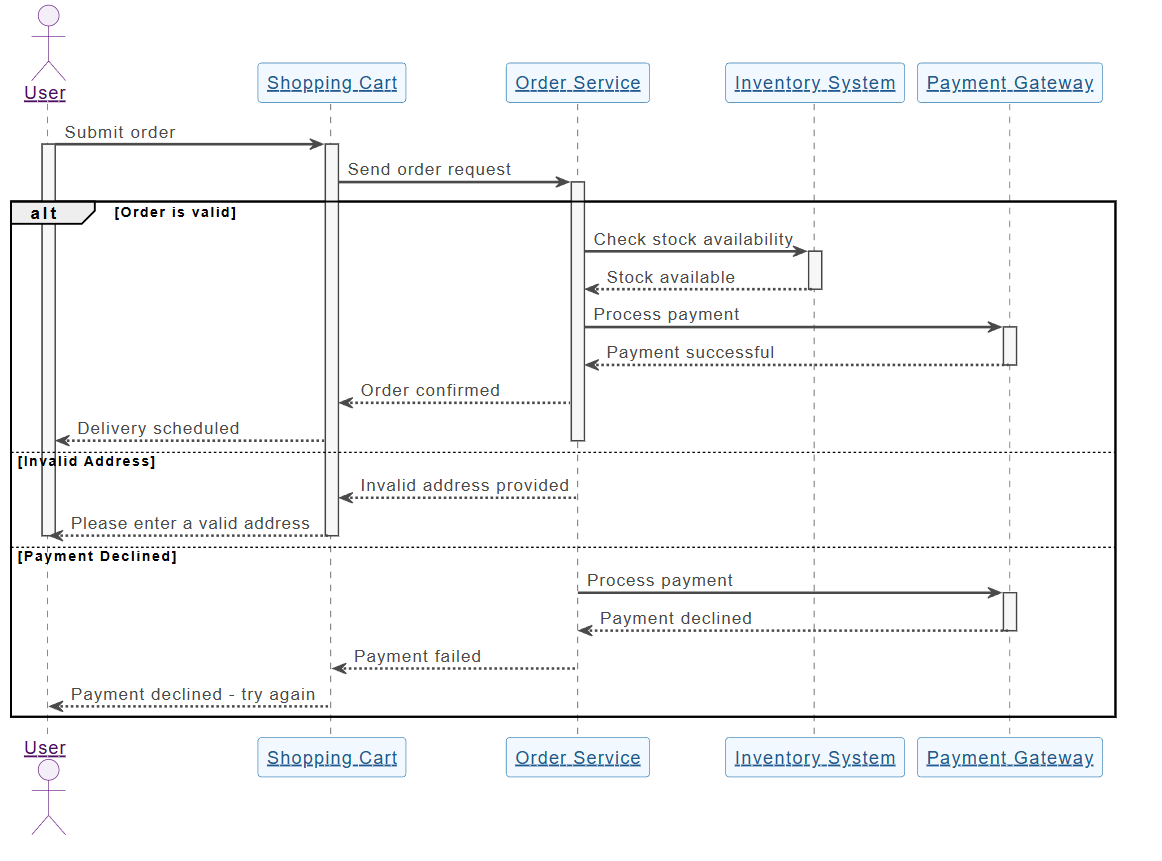
Consider a realistic e-commerce scenario where a user places an order via a shopping cart. The process involves validation of address, stock availability, and payment. The system must handle three main paths:

A Case Study: Modeling an E-Commerce Order Submission Process with UML Sequence Diagrams Using Visual Paradigm’s AI Chatbot

  1. Success: Valid order → stock reserved → payment processed → order confirmed and delivery scheduled.
  2. Invalid Address: Early rejection with user prompt.
  3. Payment Declined: Stock checked but payment fails → error message to user.

This flow includes conditional branching (alt fragments) and error handling, making it a perfect candidate for a sequence diagram.

Participants

  • User (Actor)
  • Shopping Cart (Interface component)
  • Order Service (Core business logic)
  • Inventory System (External/back-end check)
  • Payment Gateway (External service)

Interpretation of the Diagram

The provided PlantUML-based diagram (generated conceptually from the described flow) shows:

  • The process starts with the User submitting an order via the Shopping Cart.
  • The Shopping Cart forwards the request to the Order Service.
  • An alt fragment branches based on validations:
    • [Order is valid] → Order Service checks stock with Inventory System → If available, proceeds to payment → Payment Gateway processes → Success returns confirmation → Order confirmed → Delivery scheduled → User notified.
    • [Invalid Address] → Early rejection → Message to user: “Please enter a valid address”.
    • [Payment Declined] → Payment attempted but fails → Error: “Payment declined – try again”.

The diagram uses combined fragments (alt) to group conditional paths cleanly. Activation bars show participant processing periods, and dotted return messages indicate responses. This structure keeps the diagram readable while covering happy-path and error scenarios.

Such a diagram helps developers understand message sequencing, identify potential bottlenecks (e.g., external calls to Payment Gateway), and ensure error paths are handled gracefully.

Using Visual Paradigm’s AI Chatbot to Create the Sequence Diagram

Visual Paradigm, a leading UML modeling tool, features an AI Chatbot (accessible via their online platform or desktop app) that revolutionizes diagram creation. Instead of manually dragging lifelines and arrows, users describe the scenario in natural language, and the AI generates a professional, editable UML diagram instantly.

Step-by-Step Process

  1. Access the AI Chatbot (e.g., at chat.visual-paradigm.com or via Tools > AI Chatbot in Visual Paradigm).
  2. Select or specify “UML Sequence Diagram” as the type.
  3. Provide a clear textual description, such as the one in this case study: “A user submits an order from the shopping cart. The order service validates the address and stock. If invalid address, prompt user. If valid, check inventory. If stock available, process payment via gateway. If payment succeeds, confirm order and schedule delivery. Include branches for invalid address and payment declined.”
  4. Refine via conversation: Ask the AI to add details (e.g., “Add activation bars” or “Include return messages for failures”).
  5. Generate: The AI produces the diagram (often in editable format, with PlantUML source if needed).
  6. Edit & Export: Refine manually (adjust layout, labels), then export as image, PDF, or code.

In this case study, the diagram closely matches what the AI would output from the provided description — complete with alt fragments for branches, proper message directions, and clean lifelines. The tool ensures UML compliance, balanced layout, and readability.

Benefits observed:

  • Speed: From text to diagram in seconds.
  • Accuracy: AI applies correct notation for fragments and messages.
  • Iteration: Chat-based refinement allows quick adjustments without redrawing.

How to Use Sequence Diagrams Effectively

Sequence diagrams shine in:

  • Requirements analysis → Clarify use case flows with stakeholders.
  • Design phase → Detail interactions before coding.
  • Documentation → Explain system behavior to teams or for onboarding.
  • Debugging → Compare expected vs. actual message sequences.
  • Testing → Derive test cases from success/error paths.

Best practices:

  • Keep diagrams focused on one use case or scenario.
  • Use meaningful names for messages (e.g., “checkStock()” instead of vague terms).
  • Limit participants to 5–7 for readability.
  • Combine with other UML diagrams (e.g., use case diagrams for context, class diagrams for structure).

Conclusion

This e-commerce order process case study demonstrates how sequence diagrams effectively model real-world interactions with conditional logic and error handling. By leveraging Visual Paradigm’s AI Chatbot, creating such diagrams becomes accessible and efficient — shifting focus from manual drawing to high-level thinking and refinement.

Modern tools like this lower the barrier for developers, analysts, and architects, enabling faster iteration and better communication in software projects. Whether you’re designing a simple checkout or a complex distributed system, sequence diagrams — powered by AI — remain an essential tool for understanding and building reliable systems.

Articles and resources

प्रकाशित श्रेणिया AI, AI Chatbot

2026年专业软件工程与企业架构的智能化演进:Visual Paradigm深度语义建模实践指南

在2026年,生成式人工智能已从早期的技术噱头,演变为推动专业软件工程与企业架构流程革新的核心力量。然而,真正的技术突破并非单纯依赖“图像生成”或“文本转图”这类表面功能,而在于是否具备对建模语义的深层理解与工程逻辑的精准表达。

一、语义驱动的建模:超越视觉的工程智慧

Visual Paradigm在2026年的核心竞争力在于其“语义优先”的建模范式。与大多数通用大语言模型(LLM)仅能“绘制草图”不同,Visual Paradigm的AI系统经过深度训练,理解并遵循UMLSysMLBPMN、ArchiMate等主流建模标准的正式语义规则,确保生成内容在工程上是可验证、可扩展、可追溯的。

精准的建模语义表达

  • 聚集与组成关系的区分:在类图中,AI能准确识别“聚合”(hollow diamond)与“组成”(filled diamond)之间的本质差异,避免因关系误判导致的系统耦合问题。
  • 多态性与约束的精细化处理:支持复杂多重性(如0..*、1..n)和约束条件(如“支付成功后才允许发货”)的自动建模,避免人为遗漏。
  • 序列图的工程细节支持:正确处理“片段(fragment)”、“激活(activation)”、“生命线(lifeline)”等关键元素,确保行为时序符合实际业务流程。

在系统工程层面,Visual Paradigm支持SysML中块定义(block definition)与参数图(parametric diagram)的语义建模,实现需求与设计参数的动态关联。在企业架构领域,其ArchiMate视角生成能力已可自动生成涵盖“动机(Motivation)—业务(Business)—应用(Application)—技术(Technology)”四层结构的标准化视图,符号与层级均符合Open Group和OMG发布的规范。

内置验证与智能建议机制

该AI系统不仅“生成”,更扮演“建模审校员”角色。它能自动检测模型中的关键缺陷,例如:

  • 循环依赖(circular dependency)导致的系统不稳定
  • 未定义的约束条件或缺失的边界场景
  • 模型违反“良好形式性”规则(如不合法的类关系或接口定义)

基于这些发现,系统会提供上下文相关的优化建议,例如推荐引入“策略模式”解决权限冲突,或建议将“订单状态机”重构为状态机图以提升可读性。这种语义层的智能反馈,为后续代码自动生成、系统仿真、测试用例设计等下游任务提供了坚实基础。

二、实时对话式建模:敏捷开发中的“AI协作者”

Visual Paradigm彻底摒弃了传统“一次生成、无法修改”的静态流程,转而构建了一个基于自然语言的动态对话式建模工作流。用户可通过其AI Chatbot(访问地址:chat.visual-paradigm.com 或集成于桌面客户端)与AI进行多轮交互,实现模型的持续迭代与优化。

文本到图的无缝生成

用户只需输入清晰的问题描述,系统即可自动解析并生成结构清晰、布局合理的图表。例如,输入如下指令:

“生成一个电商平台支付流程的UML时序图,包含双因素认证(2FA)环节。”

系统将自动识别关键参与者(如用户、支付网关、风控服务)、调用序列与异常路径,并以专业格式输出,无需手动调整。

自然语言编辑与模型演化

模型的迭代不再依赖手动拖拽操作,而是通过自然语言指令实现动态修改:

  • “为支付失败场景增加异常处理分支”
  • “将用户角色从‘顾客’更改为‘已认证客户’”
  • “为订单状态添加超时自动取消逻辑”

这些指令不仅更新模型结构,还会自动触发图示的重新布局、连接线优化与路径清晰化,确保输出始终符合专业工程文档的视觉标准。

AI作为技术协作者

系统还能主动回答建模问题,例如:

  • “include与extend在用例图中的区别是什么?”
  • “如何在SysML中定义一个可复用的子系统?”
  • “如何通过参数图表达性能指标的约束?”

同时,AI还能自动生成摘要报告或文档草稿,便于团队快速理解复杂系统逻辑,提升协作效率。

三、自动变更传播:维护模型一致性与可追溯性

在大型企业架构项目中,孤立的图示极易导致“文档衰减”(documentation rot)与信息断层。Visual Paradigm在2026年通过“全模型联动机制”解决了这一痛点。

跨视图的实时传播

当用户在时序图中修改一个服务名,或调整接口参数时,该变更会即时同步至相关的类图、部署视图、C4架构图等。例如:

  • 在时序图中修改“用户认证服务”名称 → 同时更新其在类图中的类名
  • 更改服务接口的输入参数 → 自动同步至组件图中接口定义与调用链

这种“单一数据源”(single source of truth)机制,确保了从高层战略架构到底层组件设计之间的一致性,避免了因人工同步导致的矛盾与错误。

追溯性与抗衰变机制

系统内置了完整的版本控制与变更追踪功能,支持:

  • 变更历史记录(change log)
  • 版本回滚(revert to previous state)
  • 注释与说明(annotations)

结合对建模标准的深度理解,Visual Paradigm在处理大规模企业级模型时,避免了通用AI工具常出现的“上下文窗口过载”问题,保证了模型的稳定性与可扩展性。

四、一体化专业工作流支持:从创意到落地的全链路闭环

Visual Paradigm的AI并非“终点工具”,而是工程师工作流的起点。AI生成的图表是专业建模的“种子”,后续可无缝导入编辑器进行深度开发与验证。

无缝过渡至专业编辑器

通过“AI生成 → 导出至Visual Paradigm桌面版或在线版”流程,用户可立即进入全功能编辑环境,启用以下高级功能:

  • 添加语义标签(stereotypes)
  • 执行矩阵分析(matrix analysis)
  • 分层建模与视图组织
  • 系统仿真与行为推演

云端与桌面协同工作环境

该平台支持混合工作模式:

  1. 团队成员在浏览器端(VP Online)进行头脑风暴与初始建模
  2. 关键模型同步至专业版或企业版桌面客户端,进行复杂系统设计、数据建模与代码工程任务

尤其适用于远程协作、跨部门项目与敏捷开发团队,实现“创意即时共享、设计深度迭代”的闭环。

扩展的专业功能支持

Visual Paradigm生态系统提供了多种AI增强工具,包括:

  • AI驱动的文本分析:自动从非结构化问题描述中识别系统组件、参与者、边界条件,构建初始领域模型
  • 业务流程KPI自动生成:基于流程描述,自动生成关键绩效指标(KPI)与流程瓶颈识别
  • 数据库建模AI助手DBModeler AI):结合可视化建模与实时SQL测试,实现数据库结构的快速设计与验证
  • JSON CRUD表格自动生成:输入JSON数据结构,AI自动推导出对应的增删改查(CRUD)表格结构
  • MVC架构生成器:基于业务用例,自动生成MVC架构图,包括控制器、模型、视图层的类图与交互序列图

输出格式全面支持XMI、PDF、PNG、SVG等标准格式,便于团队间交接、评审与集成。

五、2026年使用指南与最佳实践

初始使用路径

用户可通过以下方式接入系统:

  • Web端AI Chatbot:访问 chat.visual-paradigm.com
  • 桌面客户端集成:购买在线订阅后,AI功能可直接嵌入VP Desktop或Enterprise版
  • 工具栏入口:在桌面与在线版本的“工具”菜单中,可一键启动AI图示生成器

高效使用建议

  • 提供上下文丰富的提示:例如,“为电商平台生成一个支持‘用户注册+手机号校验+短信验证码’的UML用例图,使用包含访问控制的MVC架构”
  • 采用迭代式工作流:生成 → 审阅 → 修改 → 验证,持续优化模型质量
  • 使用企业版功能:用于处理复杂的ArchiMate视角、SysML建模、多版本协同与严格变更控制

结语:重新定义技术建模的未来

Visual Paradigm在2026年的AI演进,标志着专业建模领域从“手动画图”向“智能协同”的根本转变。它不仅提升了建模效率,更通过语义理解、实时反馈与自动同步,实现了模型的“可维护性”与“可演化性”。

在软件架构复杂化、企业系统高度集成化的今天,这种融合了生成式AI与正式建模标准的工具,正成为软件工程师、系统架构师与企业分析师不可或缺的生产力工具。它不是“替代人类”,而是“赋能人类”,让工程师把精力从“画图”转移到“解决问题”上,真正实现技术价值的跃升。

相关案例参考

  • 《AI驱动的MVC架构生成器实战》:以“报名课程”用例为例,系统自动推导出包含控制器、课程表、用户验证的完整MVC结构
  • 《AI生成的用例报告》:将PlantUML用例图自动转换为结构化文档报告,提升设计文档的可读性与可检索性
  • 《基于JSON的CRUD表自动生成》:输入API接口数据,AI生成可直接用于开发的表格结构
  • 《企业级ArchiMate视角自动生成》:基于业务描述,自动构建涵盖战略、技术、应用层的完整架构视图

प्रकाशित श्रेणिया AI Chatbot

Visual Paradigm: A Comprehensive AI-Powered Visual Modeling Platform in 2026

Visual modeling continues to play a central role in software development, systems engineering, enterprise architecture, and business process design. In 2026, AI-powered visual modeling platforms enable professionals to create structured diagrams more efficiently — transforming descriptions, requirements, or discussions into accurate, readable visuals that support analysis, collaboration, and decision-making. Visual Paradigm integrates advanced generative AI features — including a conversational AI Chatbot and instant diagram generator — into a robust visual modeling environment. This combination allows users to produce high-quality diagrams rapidly while retaining full control over notation, layout, validation, and presentation.

How AI Enhances Visual Modeling Workflows

The platform’s AI capabilities focus on making visual creation faster and more intuitive without compromising diagram quality:

  • Users describe the desired diagram in natural language (“Create an activity diagram showing the user onboarding process with email verification and approval steps”)
  • The AI generates a complete, standards-compliant visual model
  • Follow-up refinements improve clarity and structure (“Use swimlanes for different roles”, “Add decision nodes for rejection paths”, “Apply a consistent color scheme for decision elements”)
  • Users can query the model directly (“Highlight the critical path in this sequence diagram”, “Suggest visual improvements for readability”)

This iterative approach supports the natural way teams develop and refine visual models — starting broad and progressively adding detail and polish.

Wide Range of Supported Visual Modeling Notations

Visual Paradigm’s AI diagram generator produces precise visuals across widely used modeling standards:

Notation Common AI-Generated Diagram Types Visual Purpose & Benefit
UML Class, Sequence, Activity, Use Case, Component, Deployment, State Machine Clear representation of structure, behavior, and interactions
SysML Block Definition (BDD), Internal Block (IBD), Requirement, Parametric Structured system composition and traceability visuals
ArchiMate Motivation, Business, Application, Technology, Implementation & Migration viewpoints Layered enterprise architecture overviews
C4 Model System Context, Containers, Components, Code views Hierarchical, readable software architecture documentation
BPMN 2.0 Processes, Collaborations, Conversations Precise workflow and role-based process visuals
ERD Logical & Physical ER Diagrams (Chen / Crow’s Foot) Clean database schema and relationship visuals

The AI respects official notation rules, ensuring generated diagrams are immediately usable in professional contexts — from internal reviews to external deliverables.

From AI Generation to Polished Visual Models

Visual Paradigm supports the complete visual modeling process:

  • Quick AI-assisted start in the browser — ideal for brainstorming, workshops, or initial drafts
  • Seamless handoff to desktop — open AI-generated models in the full Visual Paradigm Desktop application for detailed visual refinement
  • Professional visual tools:
    • Multiple layout algorithms (hierarchical, orthogonal, organic)
    • Custom themes, color palettes, and icon sets
    • Layer management, visual filters, and selective hiding
    • Annotations, hyperlinks, callouts, and embedded images
  • Validation & simulation — visual rule checking, BPMN path simulation, SysML constraint evaluation
  • Export options — high-resolution PNG/SVG, interactive PDF, Visio-compatible files, embeddable HTML

This workflow ensures that fast AI-generated visuals can evolve into clear, presentation-ready diagrams without switching tools.

Additional AI Features That Support Visual Clarity

Several specialized AI tools further improve visual modeling outcomes:

  • DBModeler AI — produces well-organized ER diagrams with clear key indicators, relationship lines, and cardinality notation
  • Text → Visual Extraction — identifies concepts from requirements text and places them into structured class or ER visuals
  • Strategic Visual Generators — creates balanced Business Model Canvas, SWOT matrices, OKR trees, and other frameworks with strong visual hierarchy

Conclusion

Visual Paradigm serves as a reliable AI-powered visual modeling platform that prioritizes both speed and quality. Its combination of conversational AI generation, accurate notation support, advanced visual editing tools, and seamless workflow continuity makes it well-suited for professionals who rely on clear, precise diagrams in their daily work.

A free online trial provides instant access to the AI Chatbot and visual modeling features — an easy way to explore its capabilities for your specific use cases.

Visit: www.visual-paradigm.com

Related Links

प्रकाशित श्रेणिया AI, AI Chatbot