


Mastering Visual Paradigm OpenDocs: A Comprehensive Guide
Visual Paradigm OpenDocs represents a shift from static documentation to a dynamic knowledge ecosystem. By merging professional-grade modeling (UML, BPMN, SysML) with a modern Markdown/WYSIWYG editor, it eliminates the “documentation lag” that occurs when diagrams and text live in separate tools.
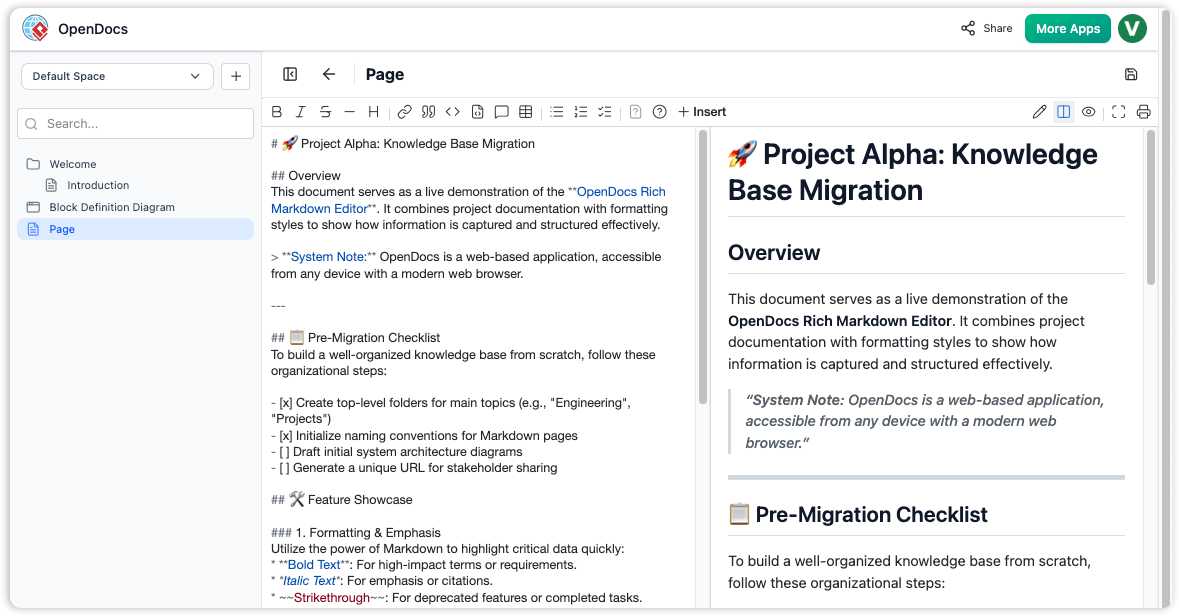
1. Setting Up Your Knowledge Workspace
The foundation of OpenDocs is the Space. Think of a Space as a centralized “Single Source of Truth” for a specific project or department.
-
Hierarchical Organization: Use the Knowledge Tree to create nested folders. This allows you to mirror your project’s architecture (e.g.,
Project X > Requirements > Technical Specs > API Design). -
Real-time Collaboration: Invite team members to a Space to co-edit documents and diagrams simultaneously.
-
Navigation: Use the drag-and-drop interface in the tree view to restructure your knowledge base as the project evolves.
2. The Hybrid Editing Experience
OpenDocs caters to both technical and non-technical users through its dual-mode editor:
-
Markdown for Power Users: Use standard Markdown syntax for rapid headers, lists, and code blocks.
-
WYSIWYG for Visual Comfort: Use the floating toolbar for bolding, italics, and table insertion if you prefer a traditional word-processing experience.
-
Live Preview: See exactly how your document will look to stakeholders as you type, ensuring formatting is consistent.
3. Deep Diagram Integration
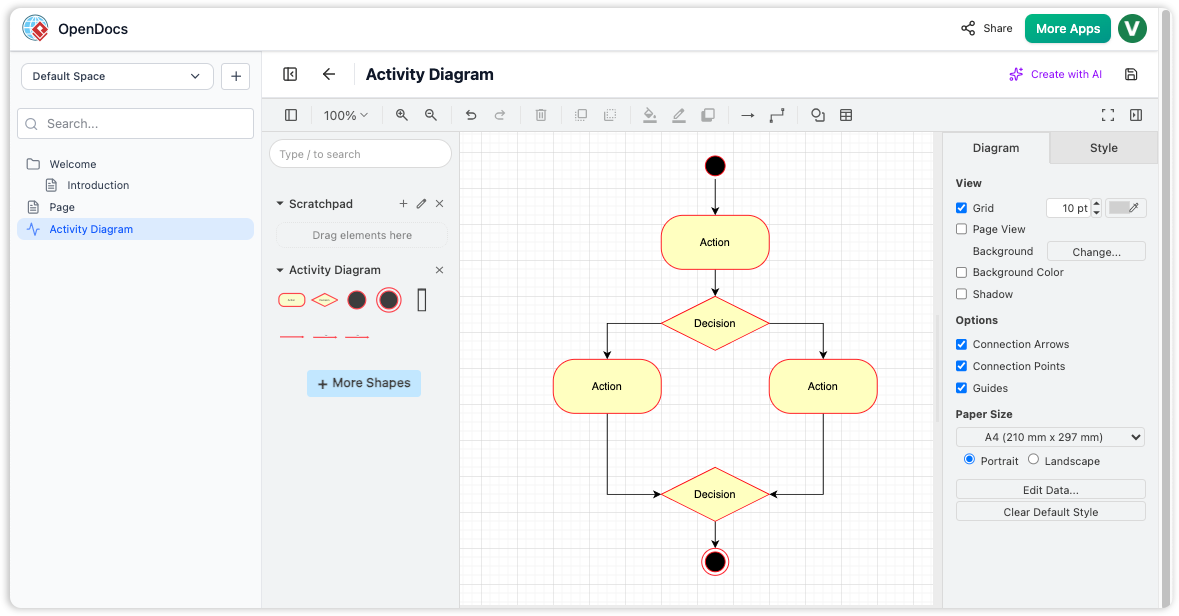
The standout feature of OpenDocs is the ability to treat complex diagrams as first-class citizens within your text.
-
Embedded Modeling: Instead of exporting a PNG and pasting it, you can embed over 200 diagram types (UML, BPMN, ArchiMate, ERDs) directly.
-
In-place Editing: Double-click any diagram within a document to launch the editor. Changes saved in the diagram tool reflect instantly in the document.
-
Specialized Components: Beyond standard modeling, use built-in tools for Mind Mapping, Org Charts, and UML Profiles to extend documentation into business and organizational domains.
4. Leveraging the AI Assistant
OpenDocs uses Generative AI to accelerate the “blank page” phase of documentation.
-
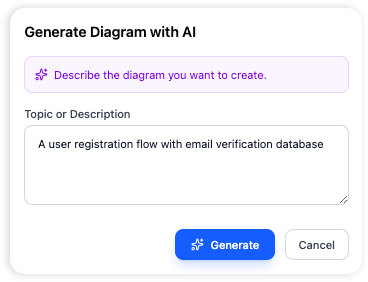
Text-to-Diagram: Use prompts like
"Create a sequence diagram for a multi-factor authentication flow"to generate a baseline model that you can then manually refine. 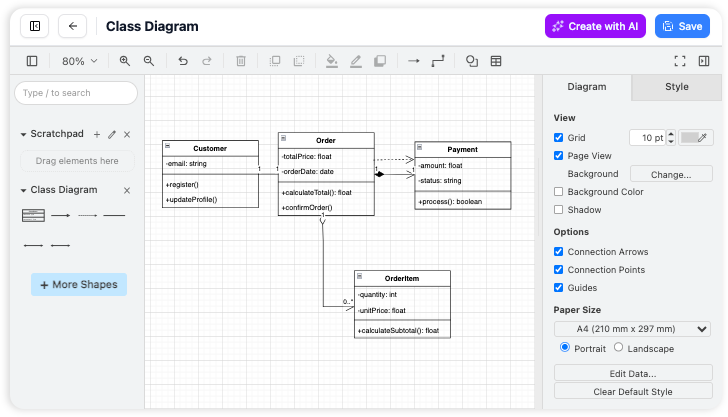
-
Content Generation: Highlight a section of text and ask the AI to Summarize, Simplify, or Expand.
-
Smart Search: Use the AI to query your existing knowledge base. Instead of searching for keywords, ask,
"How does our system handle database failovers?"and get an answer based on your uploaded specs.
5. Sharing and Publishing
Sharing your findings shouldn’t require your stakeholders to have a license or an account.
-
One-Click Web Links: Generate a secure, read-only URL for a document or an entire Space.
-
Interactive Viewers: When shared via a link, diagrams remain interactive (zoom/pan), allowing viewers to inspect complex models without losing clarity.
-
Version Control: Track changes over time to see how your architecture or business processes have shifted.
Quick Start Tips
| Feature | Best For… |
| Mind Maps | Brainstorming and initial project discovery. |
| BPMN/Flowcharts | Mapping out business processes and operational workflows. |
| UML/SysML | Deep-dive technical specifications and system architecture. |
| AI Drafts | Rapidly creating User Manuals or Onboarding guides. |
Would you like me to create a specific walkthrough for integrating C4 models or TOGAF ADM workflows within the OpenDocs environment?