


What Is OpenDocs?
OpenDocs is Visual Paradigm’s AI-powered knowledge management platform, designed to help engineering, architecture, and product teams build rich, living documentation that evolves alongside their projects [8]. It serves as an all-in-one knowledge base and documentation hub that provides an intuitive platform to create, organize, and share text and diagrams, perfect for individuals and teams to structure information effectively.
As a fully web-based tool requiring no installation, OpenDocs is accessible to users holding a Visual Paradigm Online (Combo Edition) or Visual Paradigm (Professional Edition / Desktop Professional) license.
Core Features & Capabilities
📝 Rich Editor
OpenDocs features a full-featured rich text editor with split-pane view providing live preview as you type. Key capabilities include:
- Beautifully structured documents with headings, lists, tables, code blocks, and more
- Real-time formatting preview for immediate visual feedback
- Support for technical documentation with code snippets and structured content
🎨 Integrated Diagram Editor
Create a wide variety of diagrams directly within OpenDocs without switching applications:
- Flowcharts, UML diagrams (Class, Sequence, Use Case, Activity, State Machine, Component)
- Mind maps, network diagrams, and entity relationship diagrams (ERDs)
- Vast library of shapes and stencils for professional-looking visuals
- Drag-and-drop interface with automatic alignment tools
🤖 AI-Powered Diagram Generation
From a sentence to a diagram instantly—simply describe what you need in plain English, and the AI generates the entire visual for you:
- Natural Language Input: Type prompts like “Create a flowchart for our refund process” or “Design a UML profile for healthcare systems”
- Instant Generation: AI analyzes semantics and produces production-ready diagrams in seconds
- Supported Diagram Types: UML Profile Diagrams, PERT charts, Data Flow Diagrams (DFD), Deployment Diagrams, Entity Relationship Diagrams, and more
🗂️ Hierarchical Organization
Organize your knowledge base using a familiar tree-like folder structure:
- Logical and scalable nested folders for project organization
- Drag-and-drop functionality to rearrange hierarchy
- Intuitive navigation for large documentation repositories
🔗 Seamless Collaboration & Sharing
- Generate unique URLs to share entire knowledge bases instantly with secure, read-only links
- Embedded interactive diagram components that users can hover, zoom, and explore without leaving documents
- Dedicated Component Pages for reusable reference materials across multiple documents
Supported Diagram Types
OpenDocs supports an expanding library of diagram types, many with AI generation capabilities:
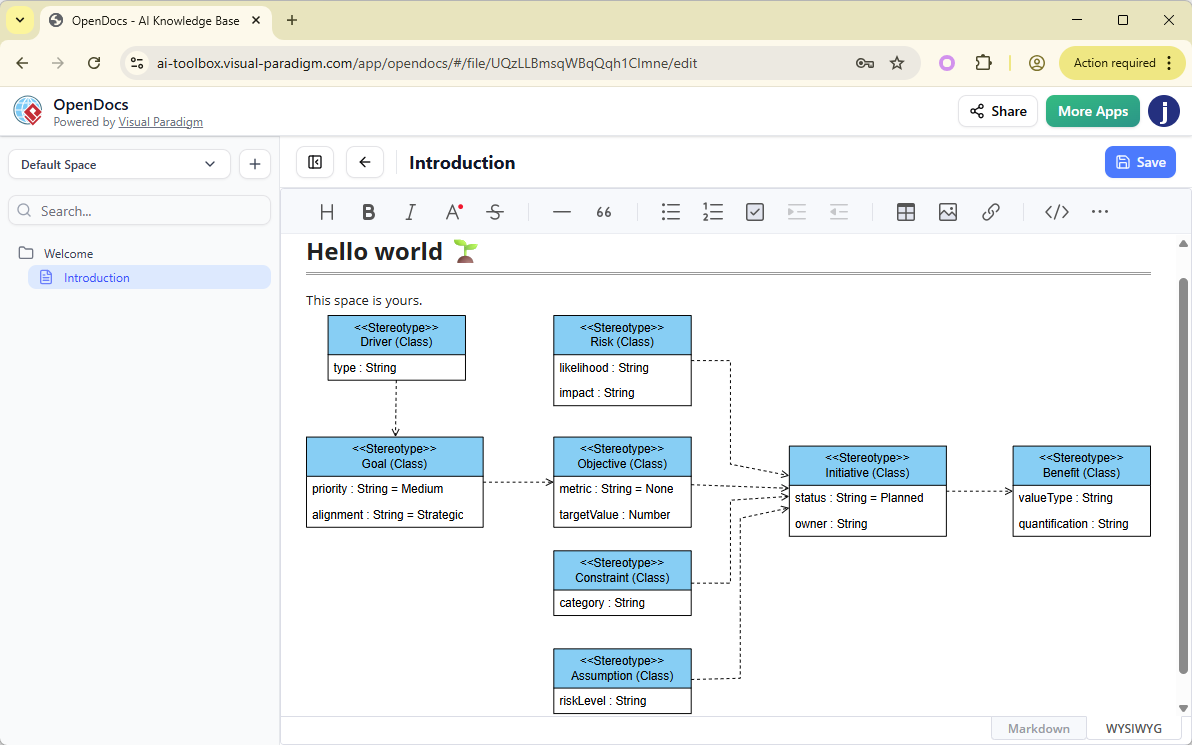
| Diagram Type | AI Generation | Use Case |
|---|---|---|
| UML Class Diagram | ✅ | Object-oriented system design |
| UML Sequence Diagram | ✅ | Interaction flow between components |
| UML Use Case Diagram | ✅ | Functional requirements modeling |
| UML Activity Diagram | ✅ | Business process workflows |
| UML Profile Diagram | ✅ | Domain-specific UML extensions [[19]] |
| UML Deployment Diagram | ✅ | Infrastructure and system deployment |
| Entity Relationship Diagram (ERD) | ✅ | Database design and modeling [[14]] |
| Data Flow Diagram (DFD) | ✅ | Information flow analysis [[7]] |
| PERT Chart | ✅ | Project timeline and critical path [[3]] |
| Mind Map | ✅ | Brainstorming and idea organization [[2]] |
| Flowchart | ✅ | Process documentation and decision trees [[23]] |
| Breakdown Structure Chart | ✅ | Work breakdown and hierarchical decomposition [[4]] |
How to Use OpenDocs: Core Workflows
Step 1: Launch & Initialize
Open the OpenDocs application through your Visual Paradigm online workspace. You’ll be greeted by a welcome screen where you can manage recent projects.
Step 2: Create and Name Your First Page
Click the “New Page” button in the sidebar to create a document, then give it a descriptive name to stay organized.
Step 3: Write and Format Content
Use the rich text editor to start writing. Use rich editing tools to add structure, emphasis, code blocks, and tables to your notes.
Step 4: Generate Visual Diagrams
- Click “Insert” → “Diagrams” tab → select your desired diagram type
- For AI generation: Click “Create with AI”, enter a natural language description, and click “Generate”
- For manual creation: Use the drag-and-drop editor with the comprehensive shape palette
Step 5: Organize with Folders
Create new folders via the sidebar and drag-and-drop pages or diagrams into them to build a structured, navigable knowledge base.
Step 6: Share Your Work
Generate a secure sharing link to distribute your entire knowledge base to collaborators or stakeholders with read-only access.
AI-Powered Workflow Example: Creating a UML Profile Diagram
- Open your OpenDocs document in the web browser
- Click Insert → Diagrams tab → Profile Diagram
- Click Create with AI (top-right corner)
- Enter a domain-specific prompt:
“Create a UML profile for automotive software with stereotypes for ECU, Sensor, and Actuator components, including tagged values for priority and compliance standards.”
- Click Generate – the AI processes semantics and returns a structured diagram
- Refine layout, add elements, or adjust stereotypes as needed
- Click Save → diagram embeds automatically into your document [[19]]
💡 Pro Tip: Use specific, context-rich language for better AI results. The more domain context you provide, the more accurate and actionable the output.
Key Benefits
| Benefit | Description |
|---|---|
| All-in-One Knowledge Hub | Combine text and diagrams in a single platform, eliminating tool-switching friction |
| Structure Your Thoughts | Organize knowledge hierarchically with nested folders for scalable navigation |
| Effortless Collaboration | Share entire knowledge bases with one-click secure links |
| Visually Rich Documentation | Go beyond plain text with professional diagrams illustrating complex processes |
| Accessible Anywhere | Web-based access from any modern browser—no desktop installation required |
| AI Acceleration | Reduce manual diagram creation time from hours to seconds with intelligent generation |
Use Cases & Target Audiences
👥 Who Benefits Most?
- Software Architects: Model system designs with UML diagrams integrated into technical documentation
- Business Analysts: Create process flows and requirement specifications with visual support
- Product Teams: Maintain living product documentation that evolves with development
- Engineering Teams: Document architecture decisions, deployment strategies, and API specifications
- Consultants & Educators: Build shareable knowledge repositories for clients or students
🎯 Common Applications
- Technical documentation and API references
- Project planning with PERT charts and Gantt-style timelines
- Database design with AI-generated ERDs
- Business process modeling with flowcharts and DFDs
- Domain-specific modeling using UML Profile extensions
- Knowledge base creation for onboarding and training
Getting Started Checklist
- Verify you have a Visual Paradigm Online (Combo) or Professional Edition license
- Access OpenDocs via https://ai.visual-paradigm.com/tool/opendocs/
- Create your first folder structure for project organization
- Experiment with the rich editor using live preview
- Try AI diagram generation with a simple prompt
- Embed a generated diagram into a documentation page
- Generate a sharing link to test collaboration features
Reference List
- OpenDocs | All-in-One Knowledge Base & Diagramming Tool: Official product page describing OpenDocs as a powerful knowledge base and documentation hub featuring rich text editing, integrated diagramming, and AI-powered generation capabilities.
- OpenDocs – AI-Powered Knowledge Platform – Visual Paradigm: Visual Paradigm’s feature overview highlighting OpenDocs as a platform to create, organize, and share text and diagrams for individuals and teams.
- Visual Paradigm Unveils AI-Powered UML Profile Diagrams in OpenDocs: Detailed article explaining OpenDocs as Visual Paradigm’s AI-powered knowledge management platform designed for engineering and product teams, with focus on new UML Profile Diagram support.
- AI Profile Diagram Generation in OpenDocs: Official release announcement detailing step-by-step instructions for creating UML Profile Diagrams using AI generation within OpenDocs.
- OpenDocs 新功能:AI 驱动的PERT图表支持: Announcement of AI-powered PERT chart generation capabilities in OpenDocs for project timeline visualization.
- OpenDocs 新功能:AI 驱动的数据流图(DFD)支持: Feature update introducing AI-driven Data Flow Diagram support for information flow analysis within OpenDocs.
- 分解结构工具:使用OpenDocs可视化复杂数据: Overview of Breakdown Structure chart capabilities in OpenDocs for visualizing hierarchical data and work decomposition.
- OpenDocs 中实体关系图的全面指南: Comprehensive guide to using AI-generated Entity Relationship Diagrams in OpenDocs for intelligent database design workflows.
- 专业文档思维导图工具: Feature announcement detailing mind map integration in OpenDocs for visual brainstorming and knowledge organization.
- OpenDocs 中的AI 部署图生成器: Introduction to AI-powered UML Deployment Diagram generation for infrastructure documentation within OpenDocs.